Ecommerce Product Page SEO is the process of making your online store more visible in the search engine results pages (SERPs). When people search for products that you sell, you want to rank as highly as possible so you get more traffic. You can get traffic from paid search, but SEO is practically free or less cost.
In eCommerce sites, there are two main types of pages to optimize: category and product pages.
Learn How to Do Site Level SEO here
Manage SEO Optimized Category Page #
Desktop
- From your MoreCustomersApp admin panel , select Categories.
- In Manage Categories , select the category whose SEO you need to do
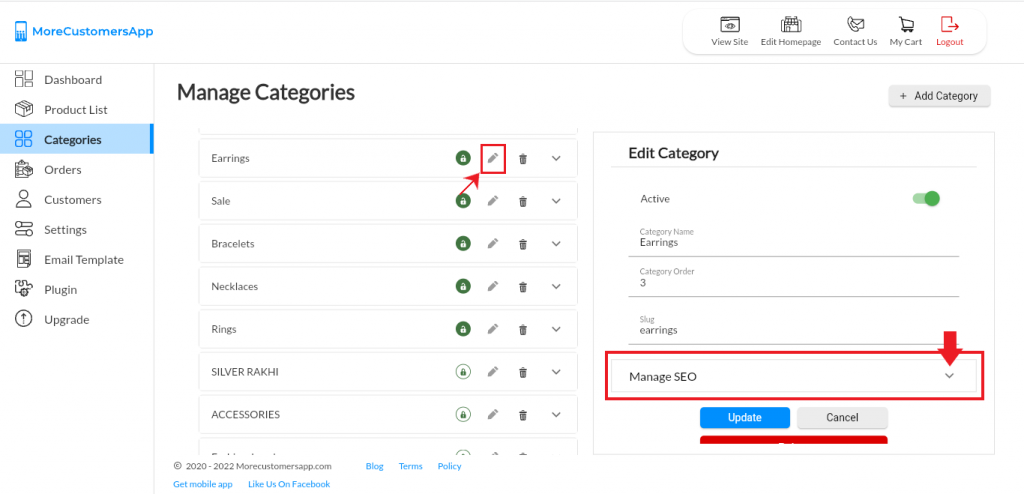
- Click on the pencil button.
- In Edit Category click on Manage SEO.
- Add Title, Description, and Keywords
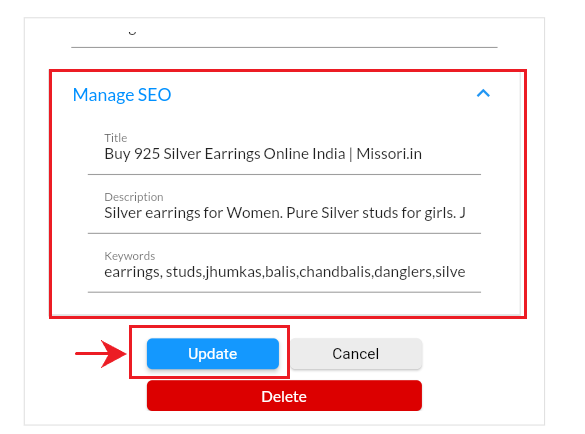
- When it is done, same can be reflected on the google search engines. Click on Update.
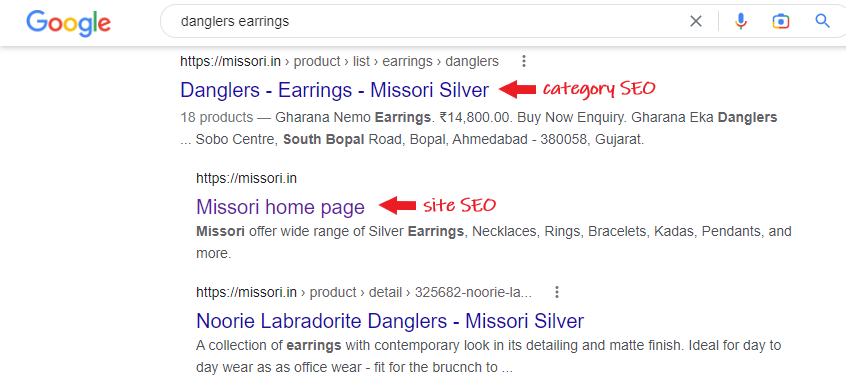
- View the Added Category level SEO in search engine
Android
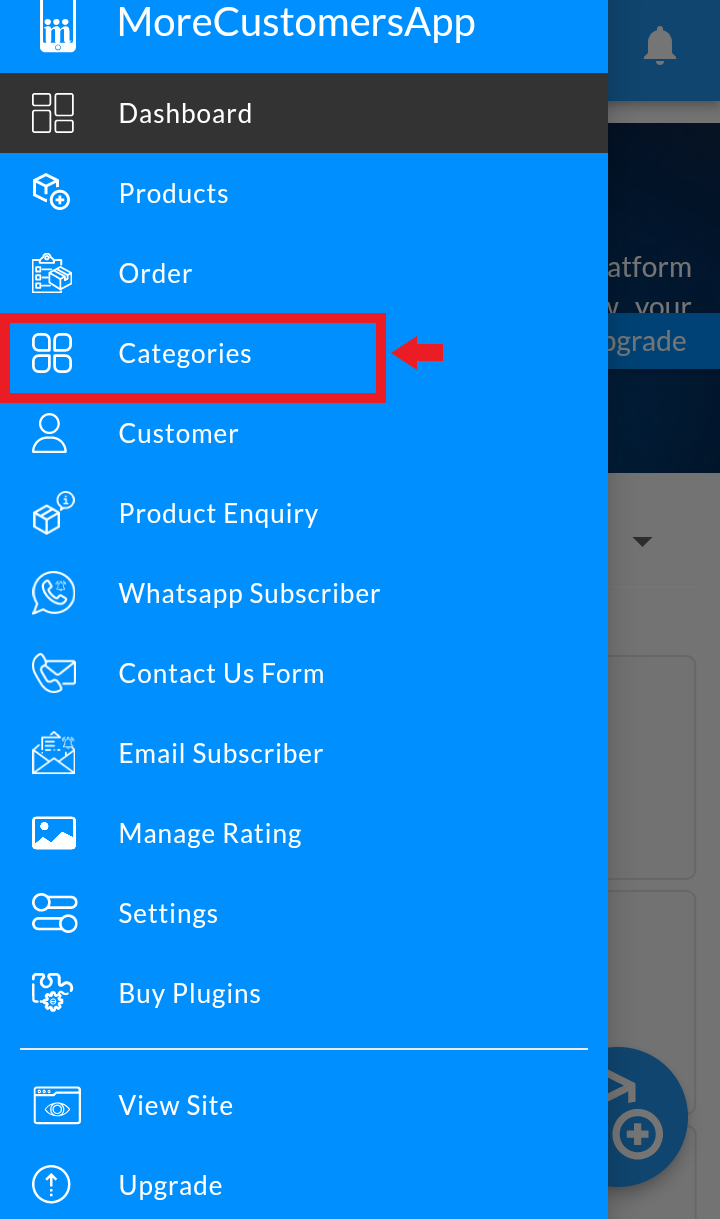
1. Click  and Go To Categories
2. Click on  to edit the selected category
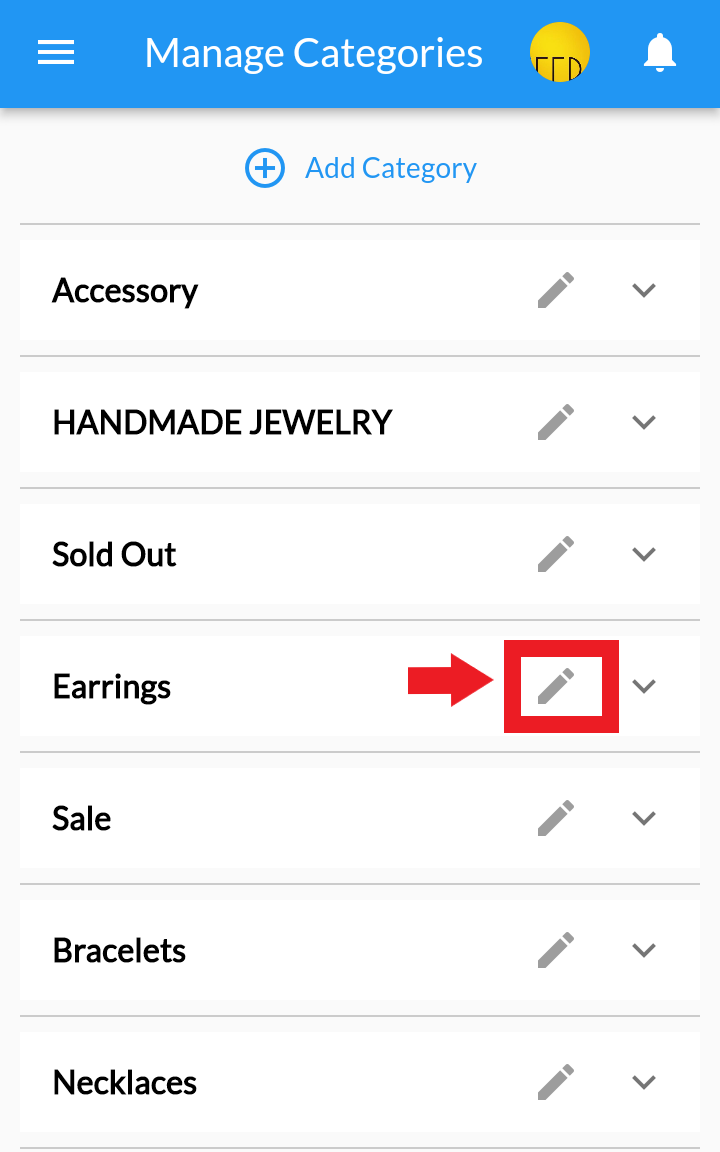
3. In Edit Category, Click on Manage SEO. Add Title, Description, Keywords and Page title. and Click on Update.
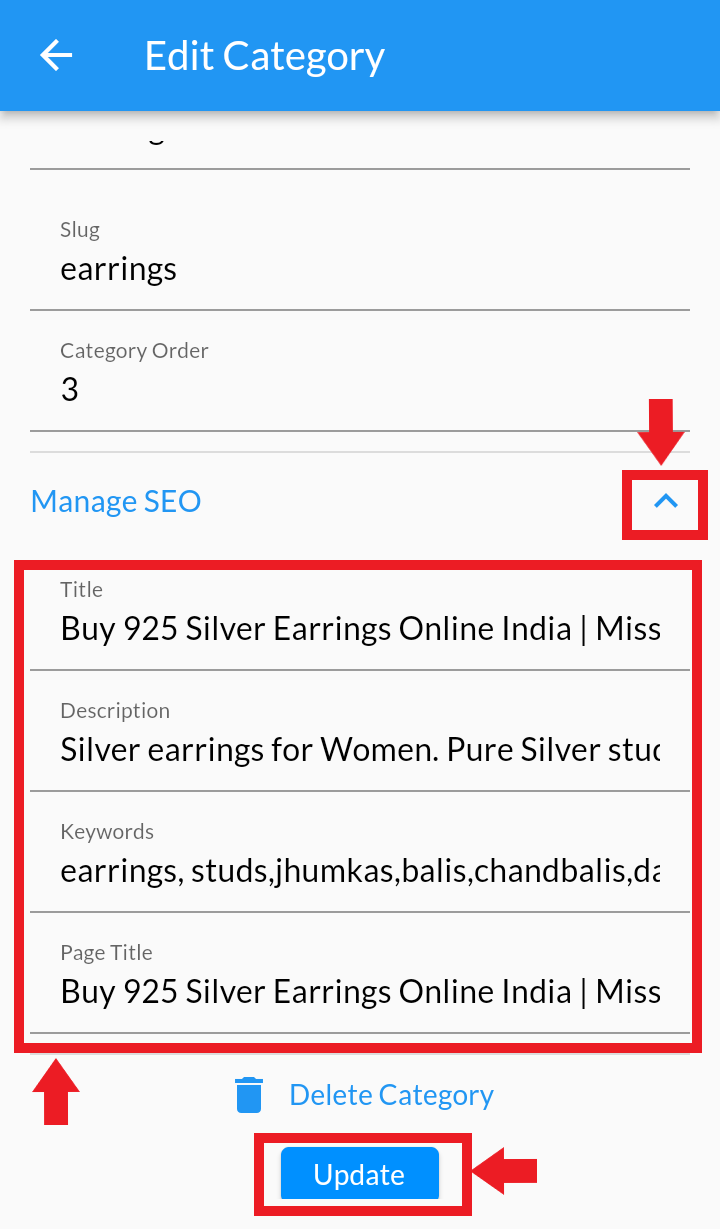
4. When it is done, same can be reflected on the google search engines.
5. View the Added Category level SEO in search engine
Manage SEO Optimized Sub-Category Page #
Desktop
- From your MoreCustomersApp admin panel , select Categories
- In Manage Categories section, select the Category.
- Click on the Down arrow of the category,click on pencil icon to add SEO for relevant Sub-category
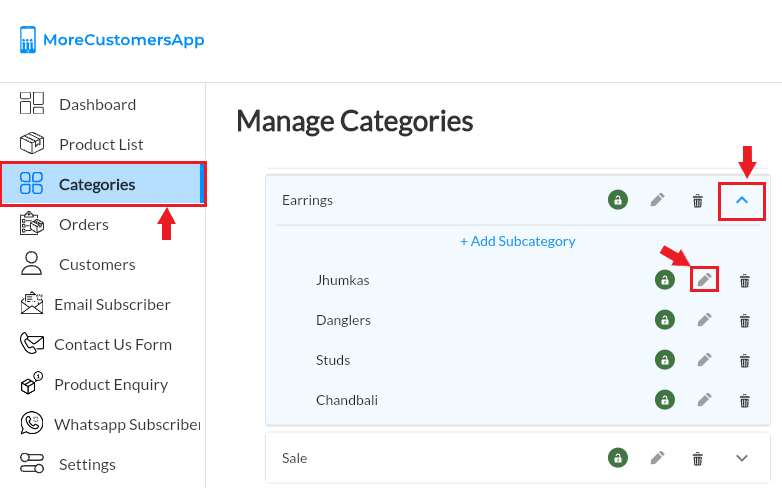
- In Edit Sub Category click on Manage SEO.
- Add Title, Description, Keywords and Page Title.
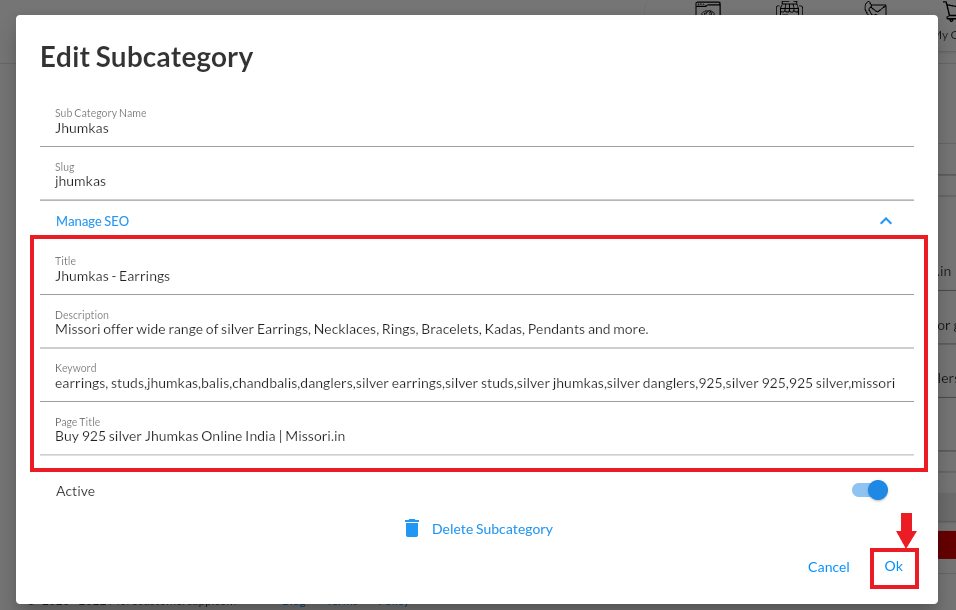
- Click on OK
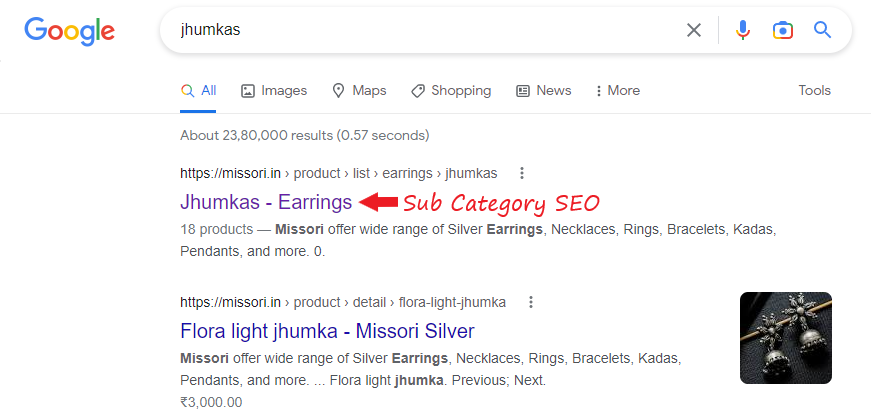
- View in Search Engine the newly added SEO for your sub-category. (Note : Added SEO takes some time to reflect in search engine)
Android
1. Click and Go To Categories
2. Click on to select Primary Category
3. In Edit Category, Click on to select SubCategory
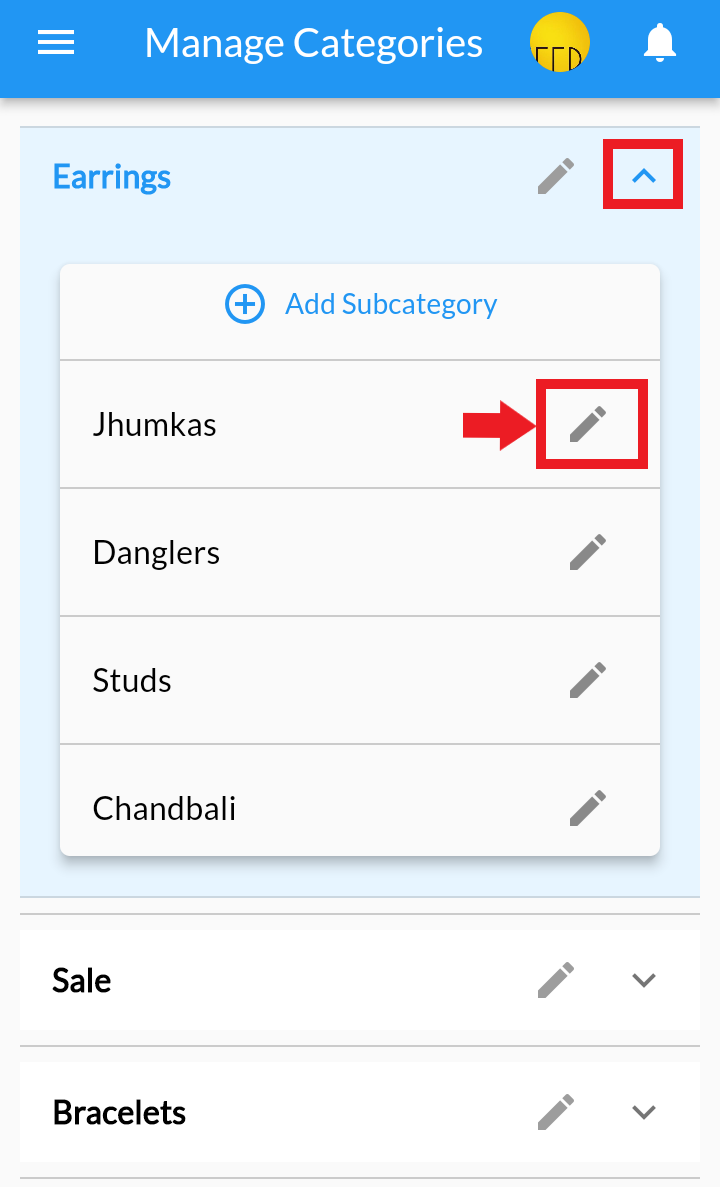
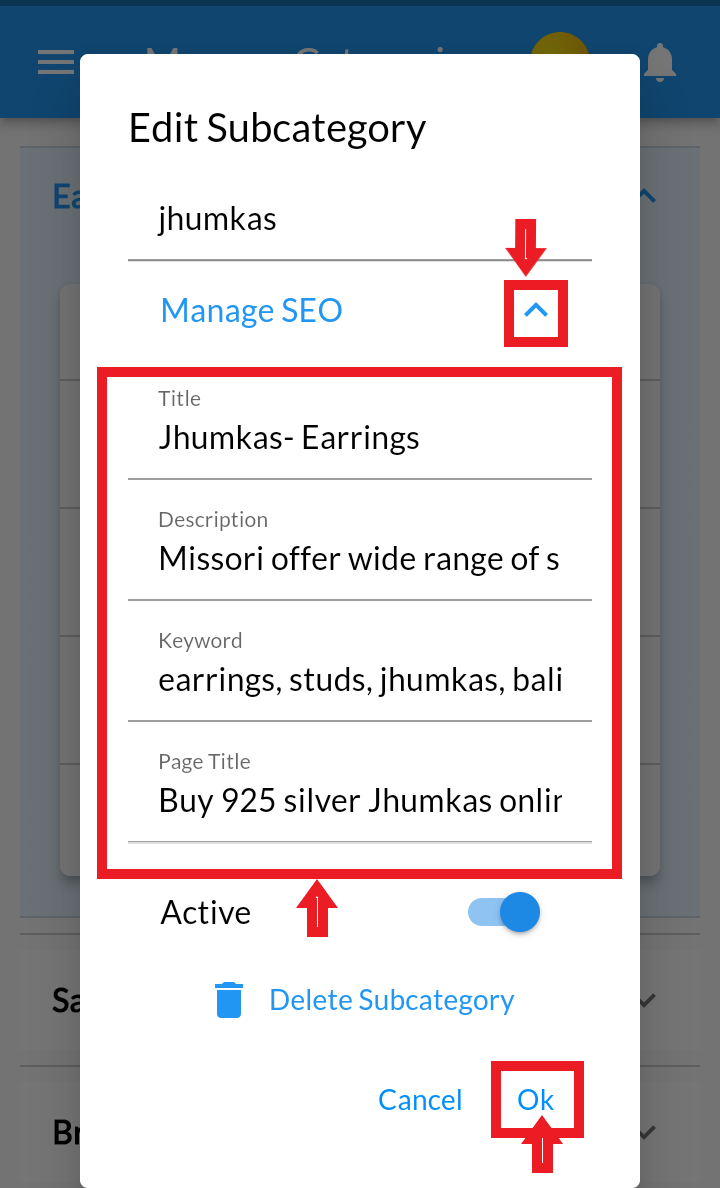
4. In Edit Sub-Category, Click on Manage SEO. Add Title, Description, Keywords and Page title. and Click on Update.
4. When it is done, same can be reflected on the google search engines.
5. View the Added Category level SEO in search engine
Manage SEO Optimized Product Page #
Desktop
- From your MoreCustomersApp admin panel , select Products.
- In Manage Products select the product to add SEO
- Click on the product name
- In Edit Product Details click on SEO tab
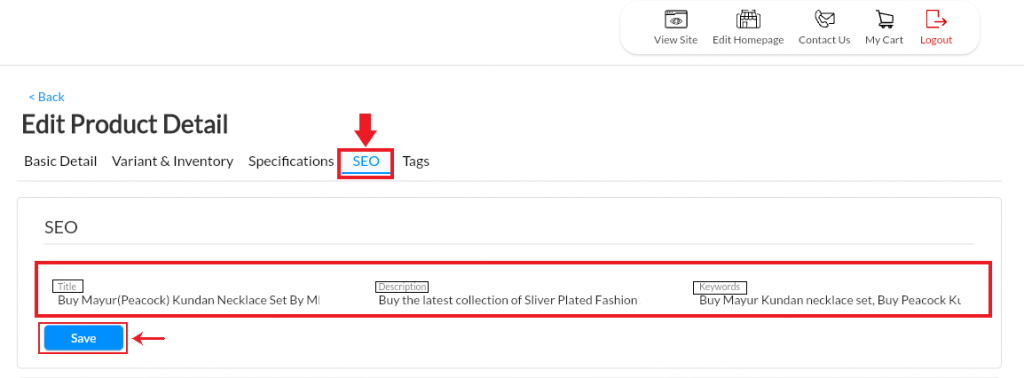
- Add Title, Description, and Keywords
- Click on Save.
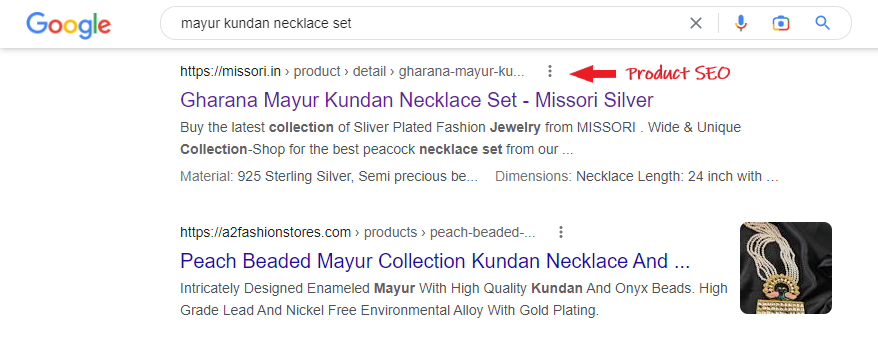
- View the added SEO in search engine
Android
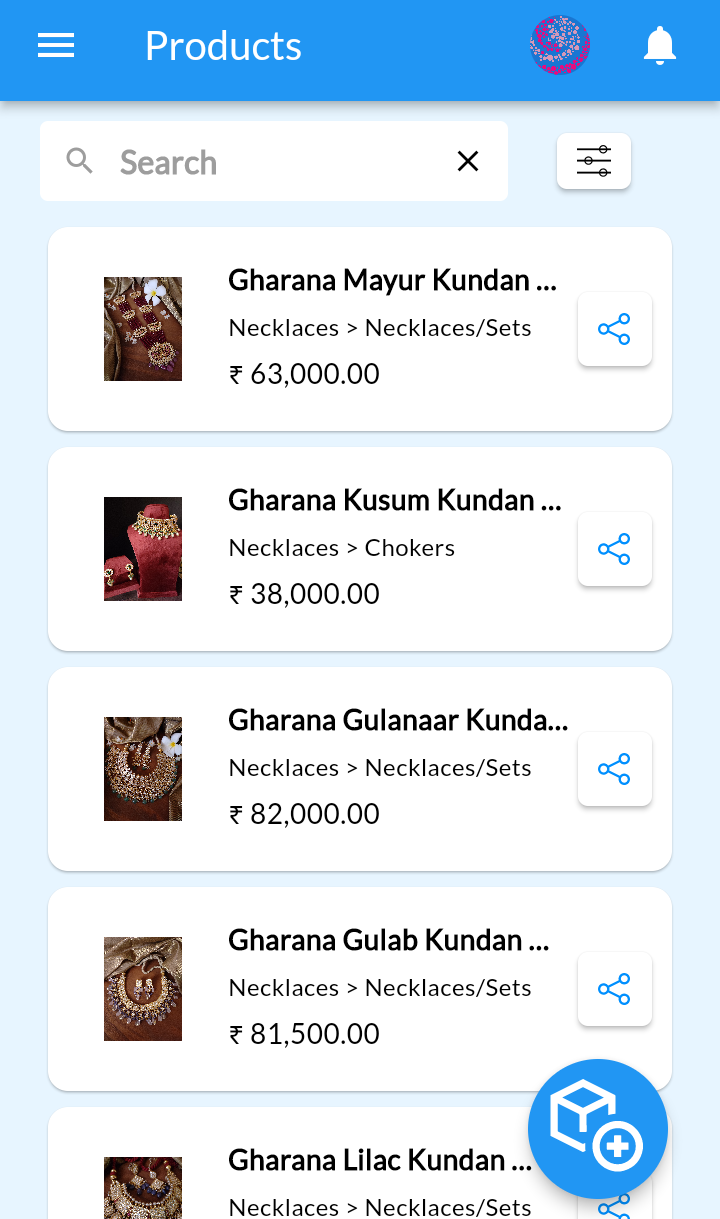
1. Click and Go To Products

2. Select Product to add or edit SEO
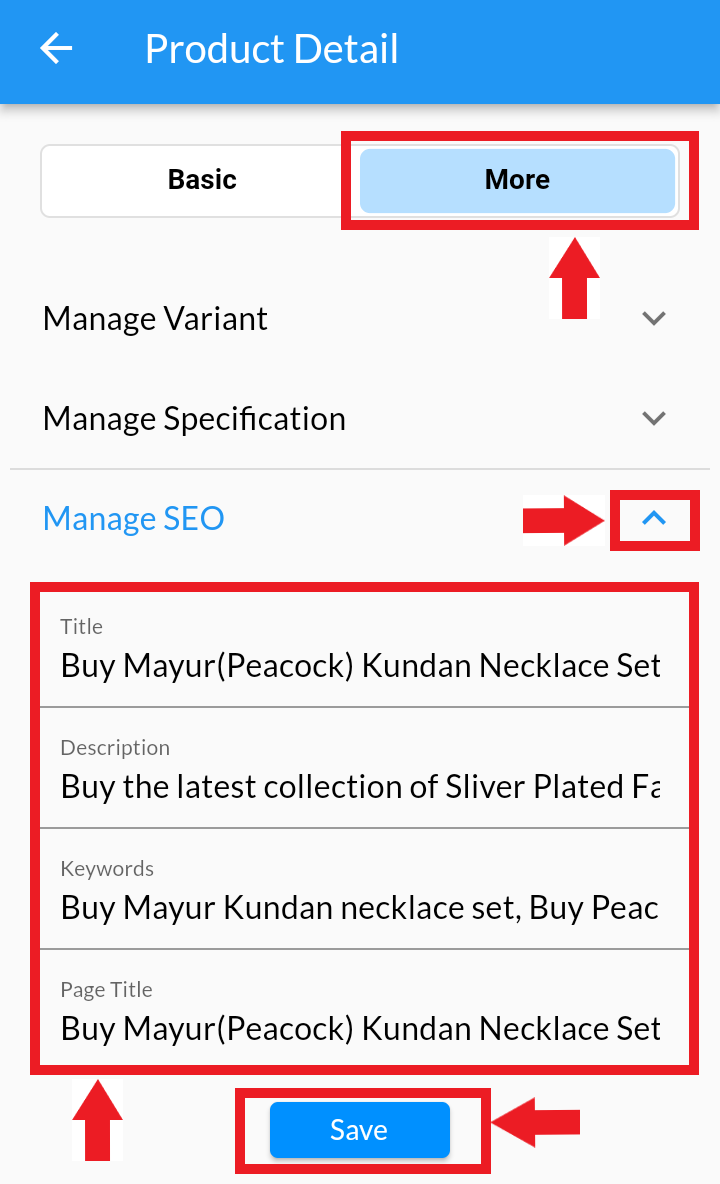
3. In Product Detail, Click on More
4. Click on Manage SEO. Add Title, Description, Keywords and Page title. and Click on Save.
4. When it is done, same can be reflected on the google search engines.
5. View the Added Product SEO in search engine