Before you launch your store to the public, it is important to go over the general settings to make sure they are all set correctly.
Site Name & Site Currency
#
MoreCustomersApp allows seller to easily change their store currency. Just select the country they want to sell and it is done. Learn How to change store name and store currency
Desktop
1. Login into your MCA Web Admin Panel
2. Go to Settings and Select Site

3. Add/Edit Site Name. Site Name is used in order notifications, invoices or whatsApp/Text messages when sent to your customers

4. Click on Save
5. To Add/Edit Store Currency, Select country from Drop Down and Click on Save button
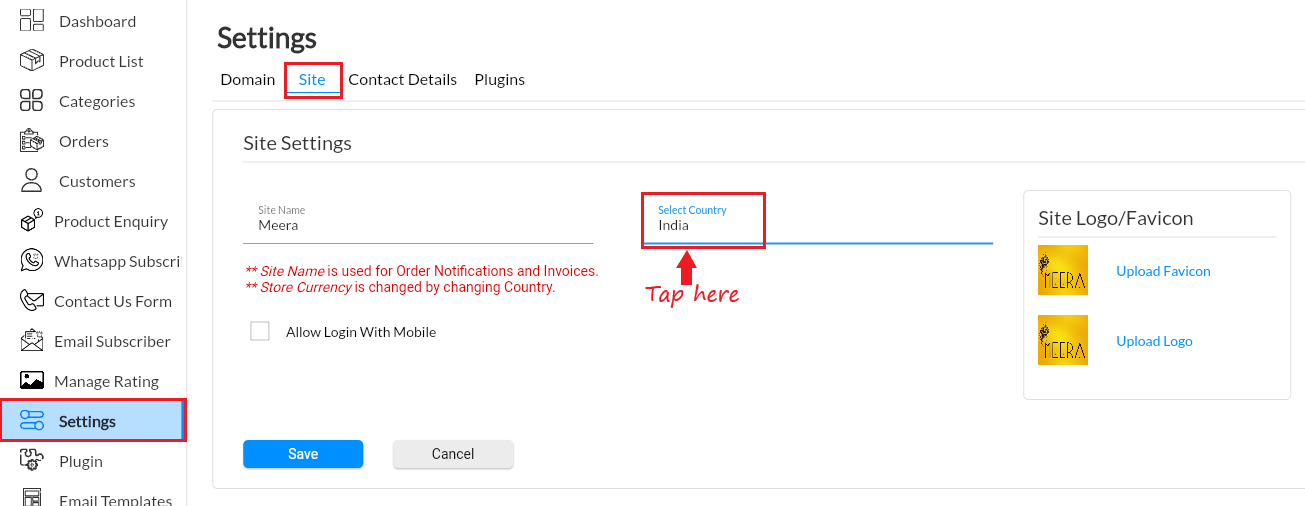
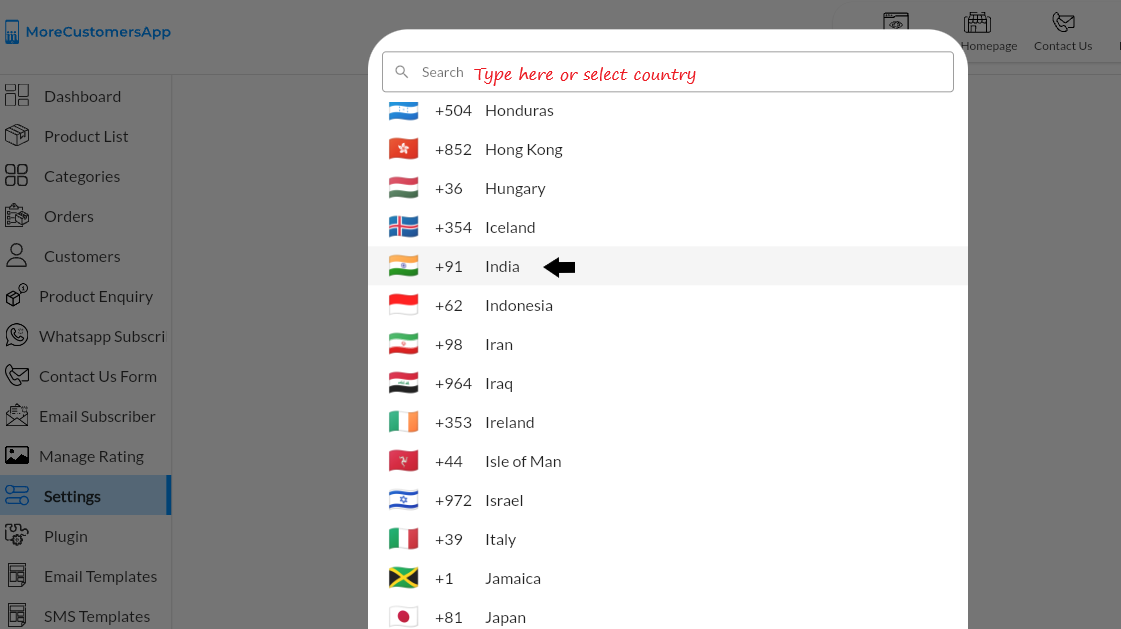
6. View the front site for currency change 
Android
1. Login into your MCA Mobile Admin App
2. click on  , select Settings
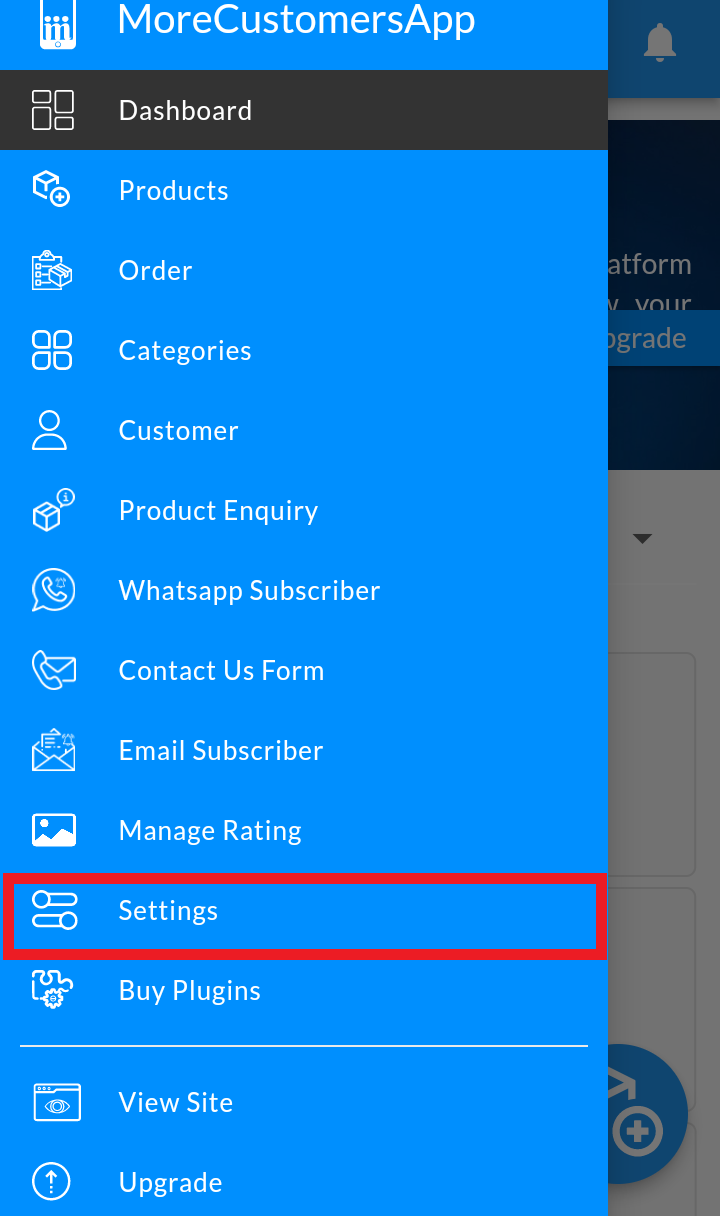
3. Go to Site Settings
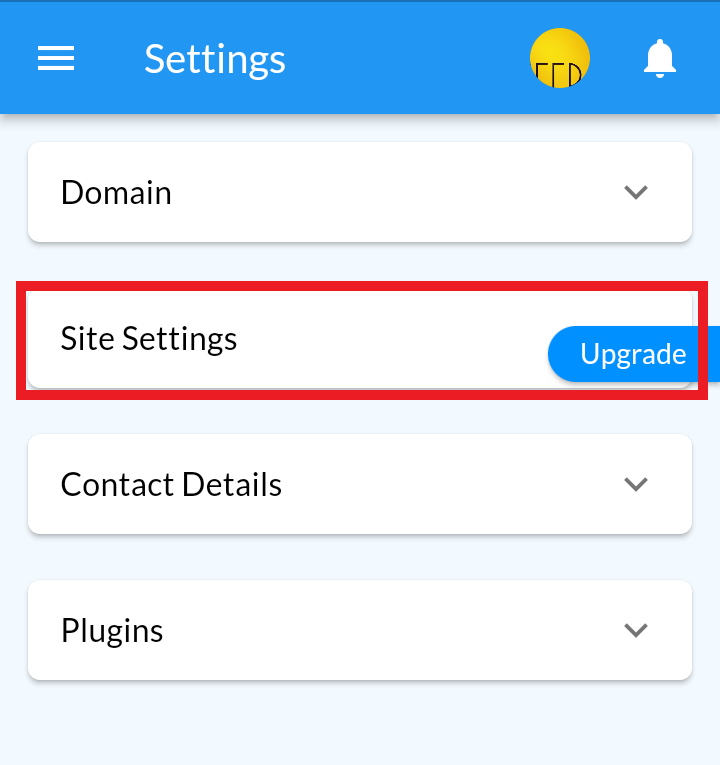
4. Change Site Name and Country. Site Name is used in order notifications, invoices or whatsApp/Text messages when sent to your customers
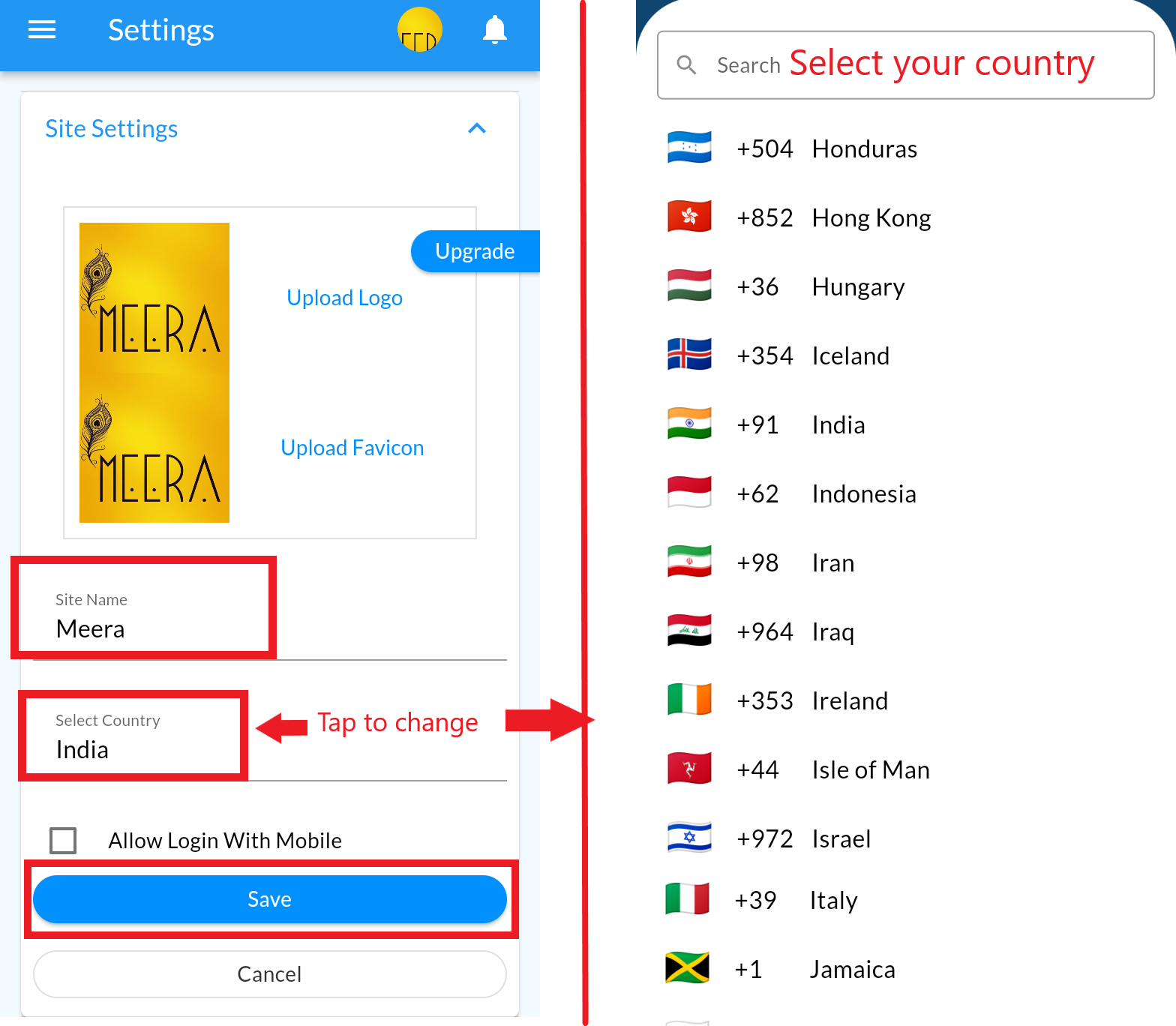
5. Click on Save button
Store Logo & Favicon #
Desktop
- Go to the MCA Admin panel and click on Settings.
- Click on Site
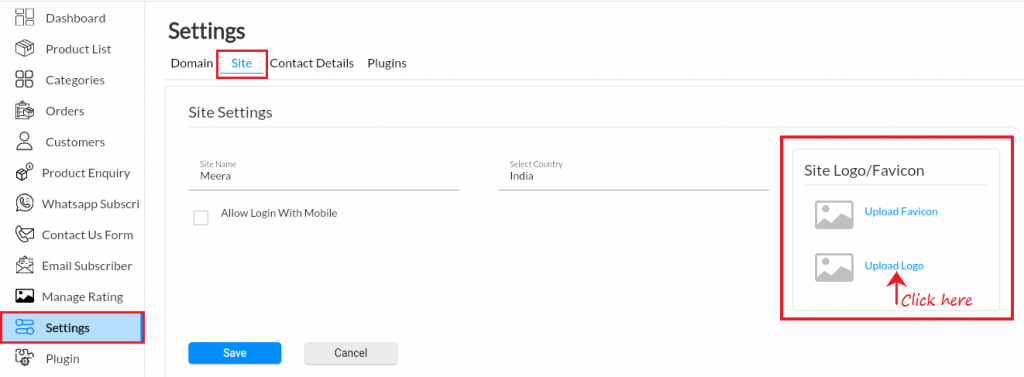
- Click on Upload Logo in Site Logo/ Favicon Box.
- Select logo Image to upload and click on Save button
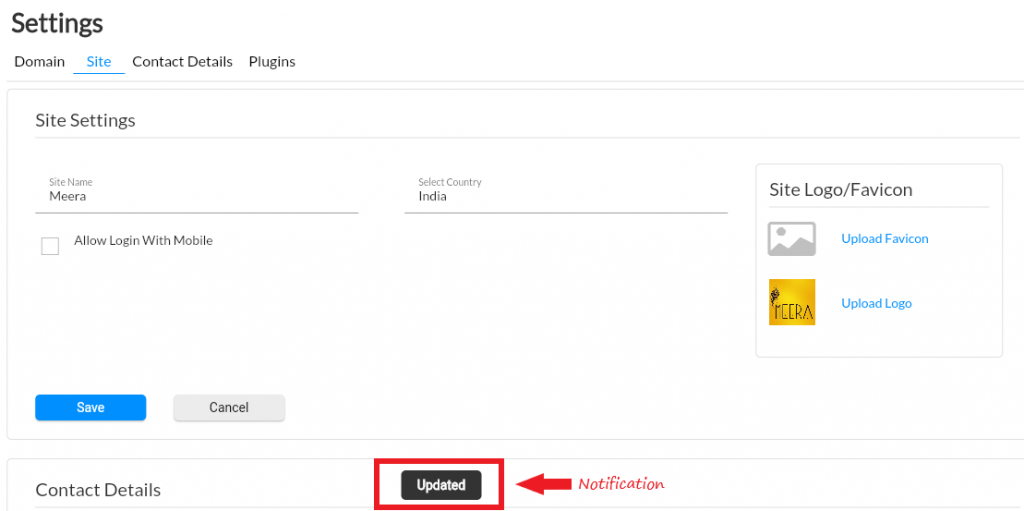
- Click on Upload Favicon in Site Logo/ Favicon Box.
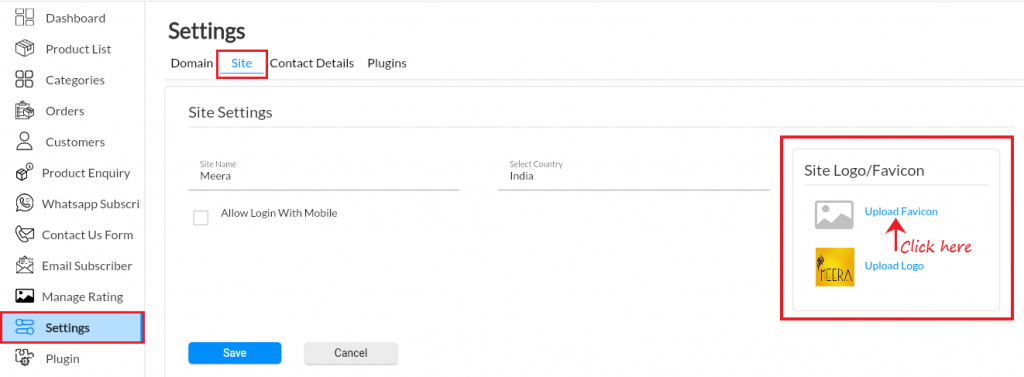
- Select favicon Image to upload and click on Save button
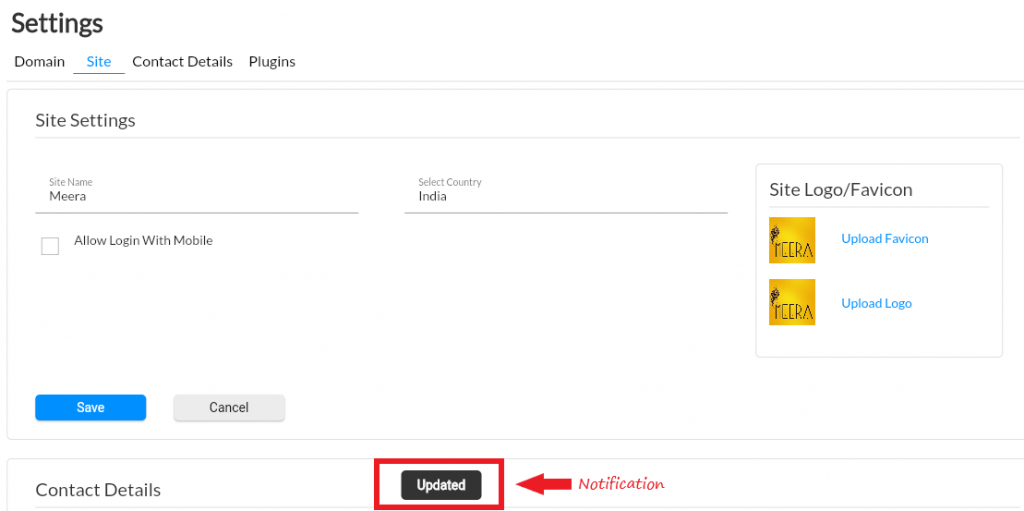
- View both images on your front site here

Android
1. Open the MCA Admin App and click on , select Settings
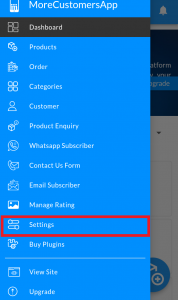
2. Click on Site Settings
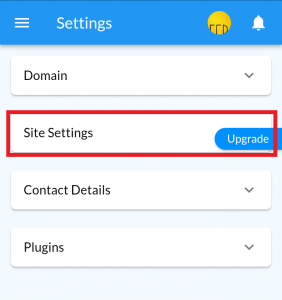
3. Upload Logo and Favicon
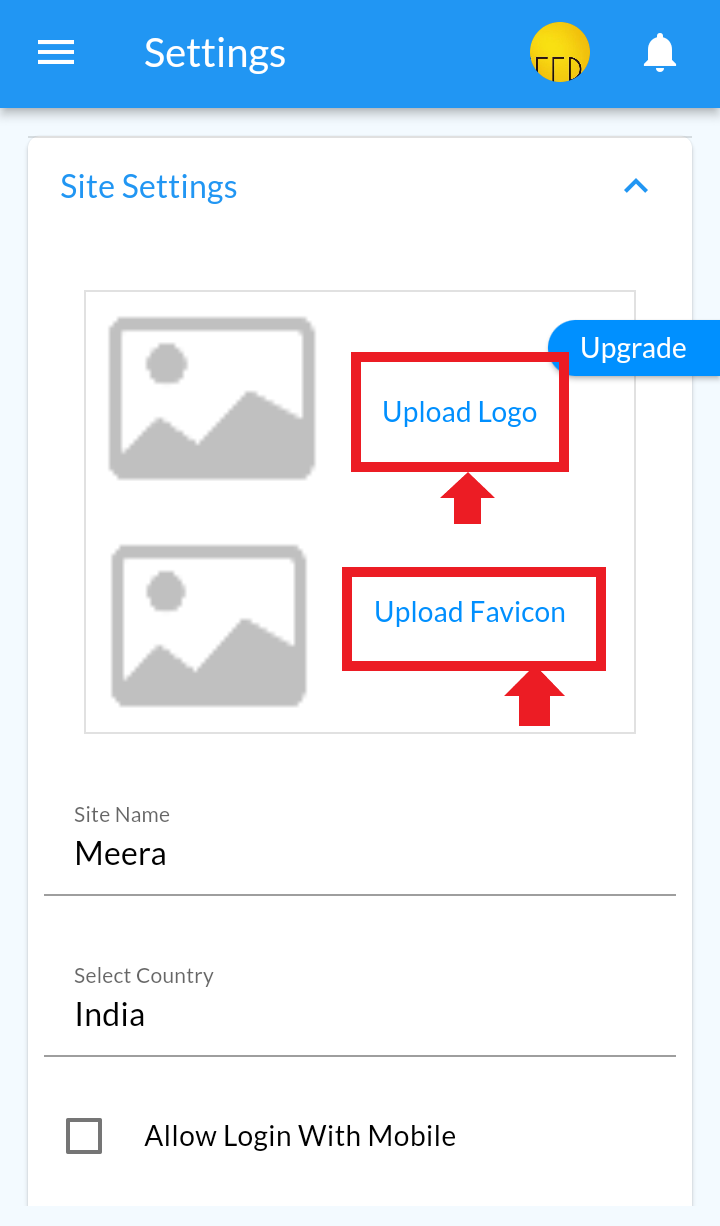
Once done Kindly proceed further with Initial MCA Store Setup to start selling online!!!