The best product content is a complete, informative product description that contains also qualitative visuals and is optimized for SEO to attract the right people to your online shop. Go to our Blog section to learn more about the Product Description and Perfect ECommerce Product Page .
Read More About How to Add Product in Your Online Store Here
Filteration of Product List #
Desktop
1. From your MoreCustomersApp admin panel , select Products
2. In Manage Products you can see all the products added to your store.
3. Click on filter button on right side of page. 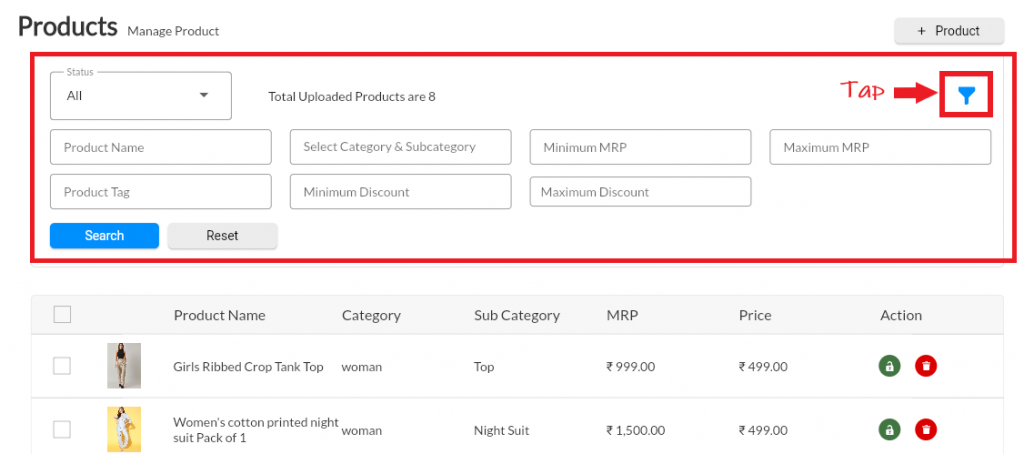
4. Search products by filters like
A. Status (Active/Inactive)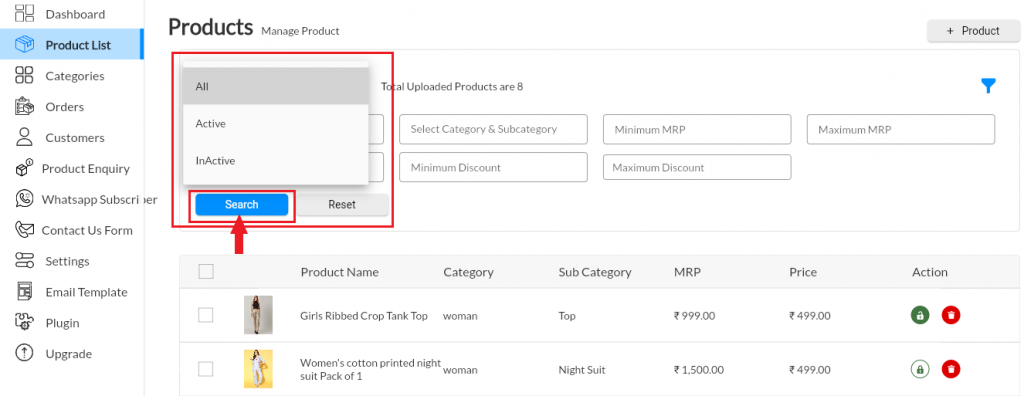
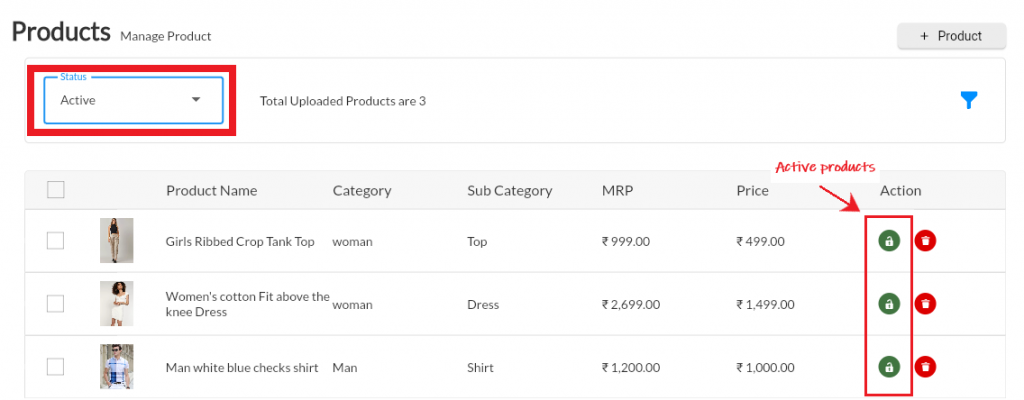
B.Product Name.
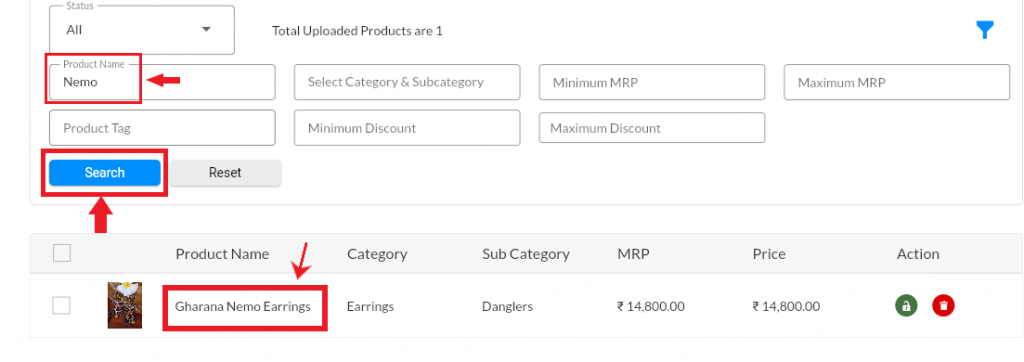
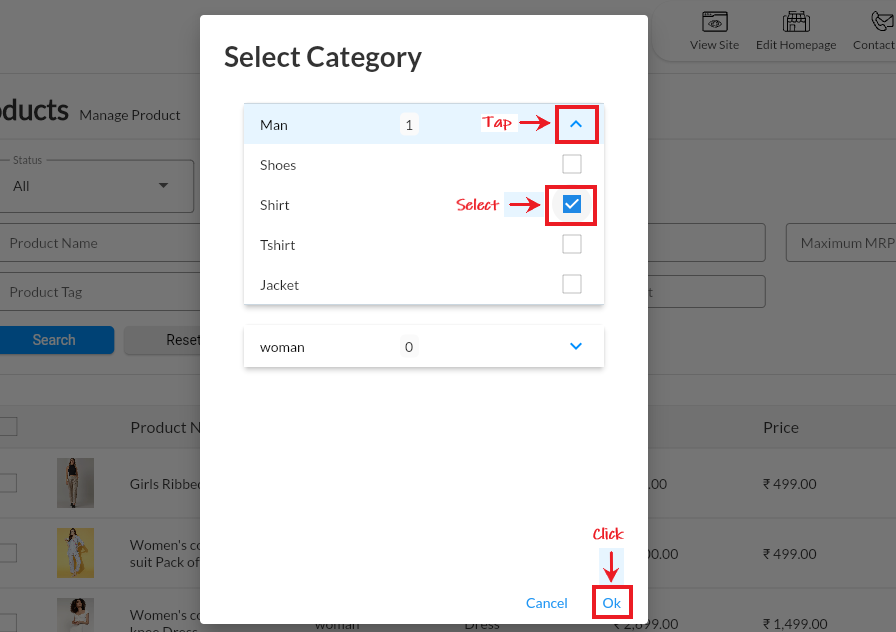
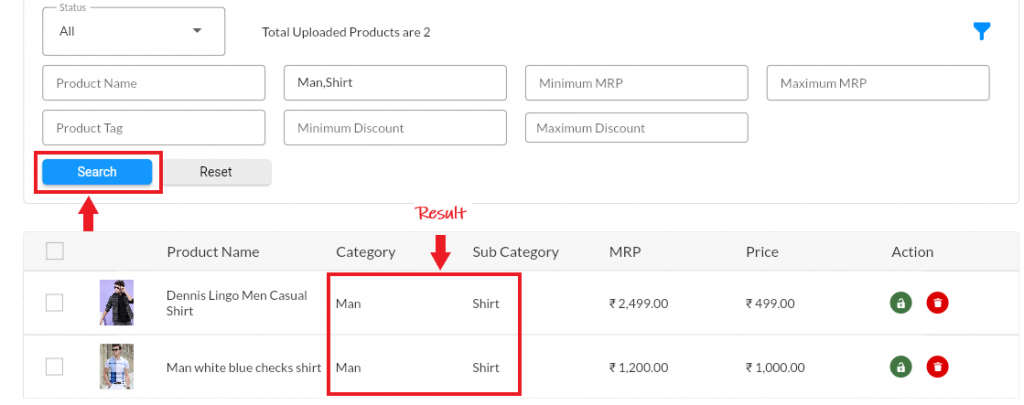
C. Category/ Subcategory. 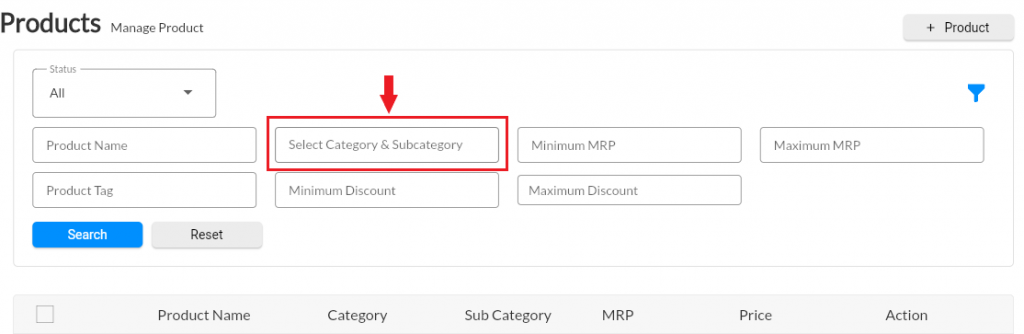
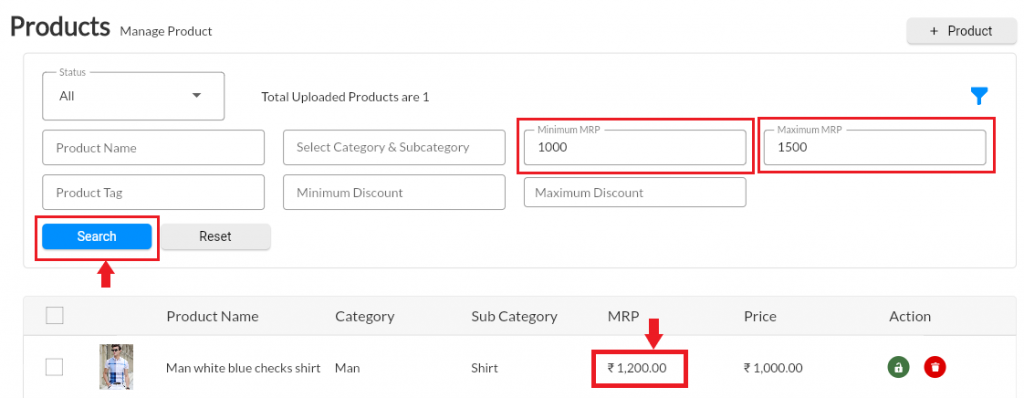
D. Min/max MRP.
E. Product Tag.
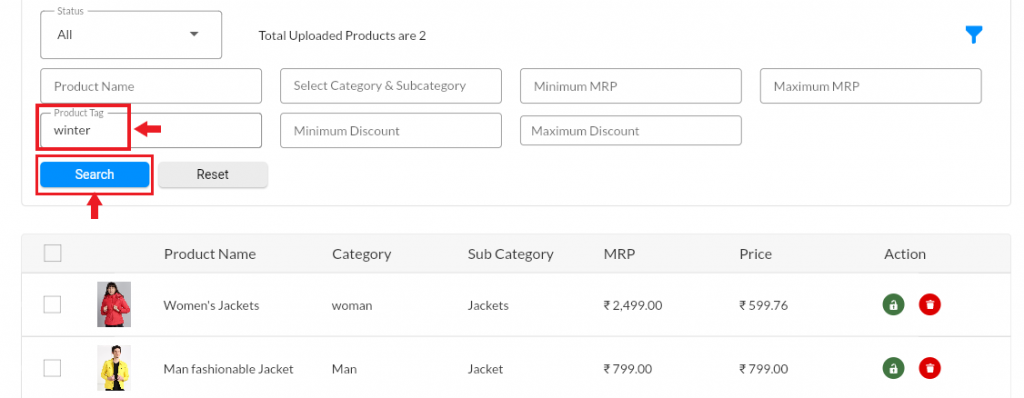
F. Min/ Max Discount. 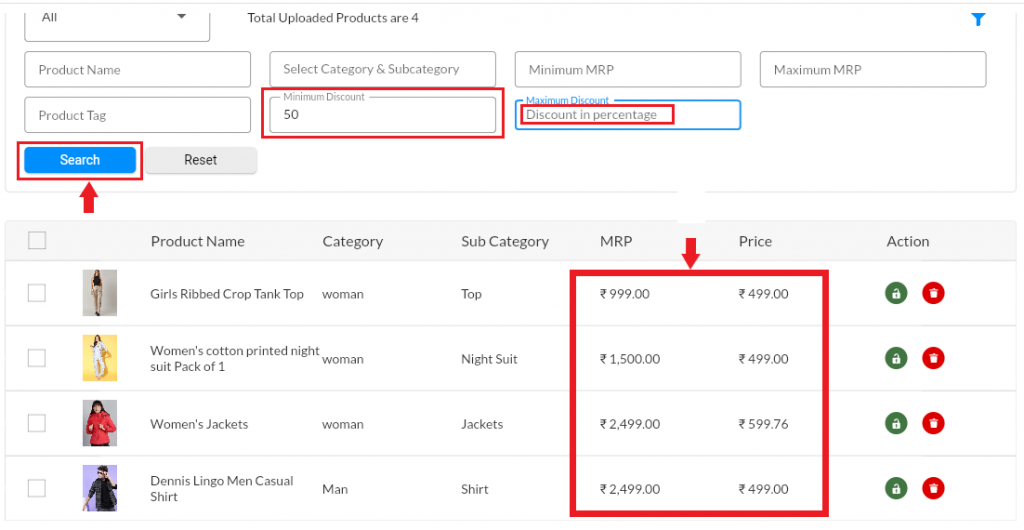
Android
1. Login in to MCA Admin App
2. Click on  , and select Products
3. Click on Filter button to apply filter in Products.
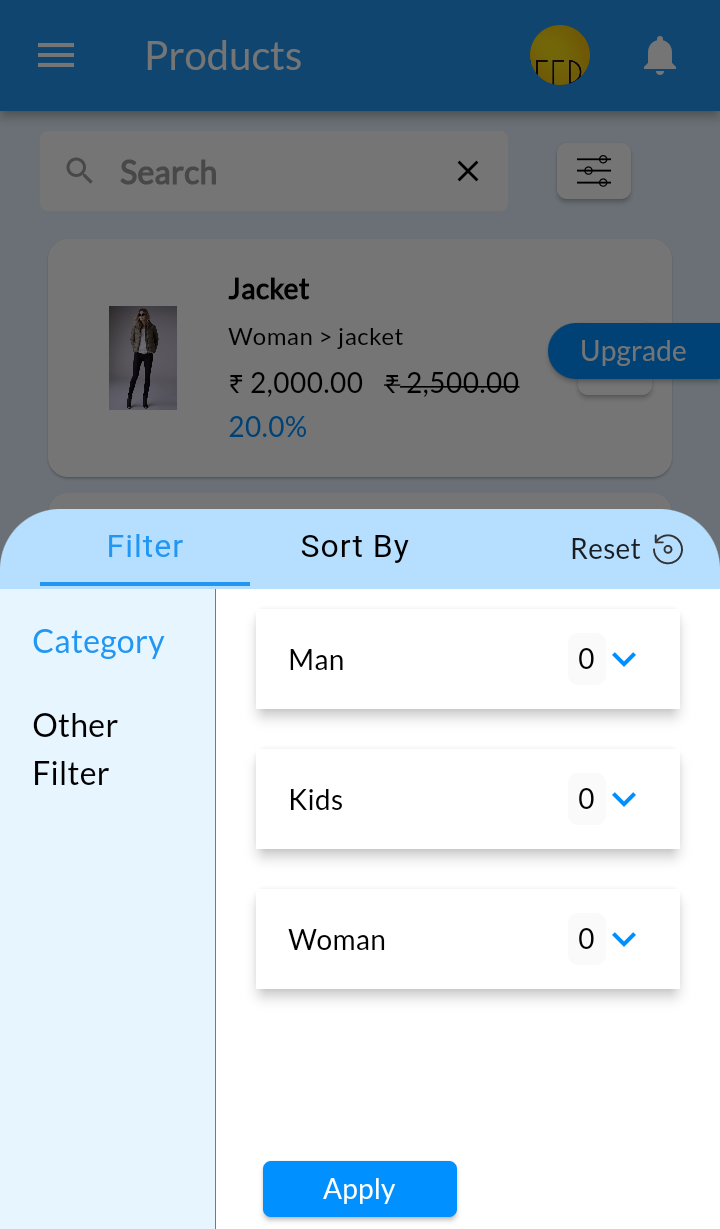
4. Search Products by Filters like
- Category/ Subcategory
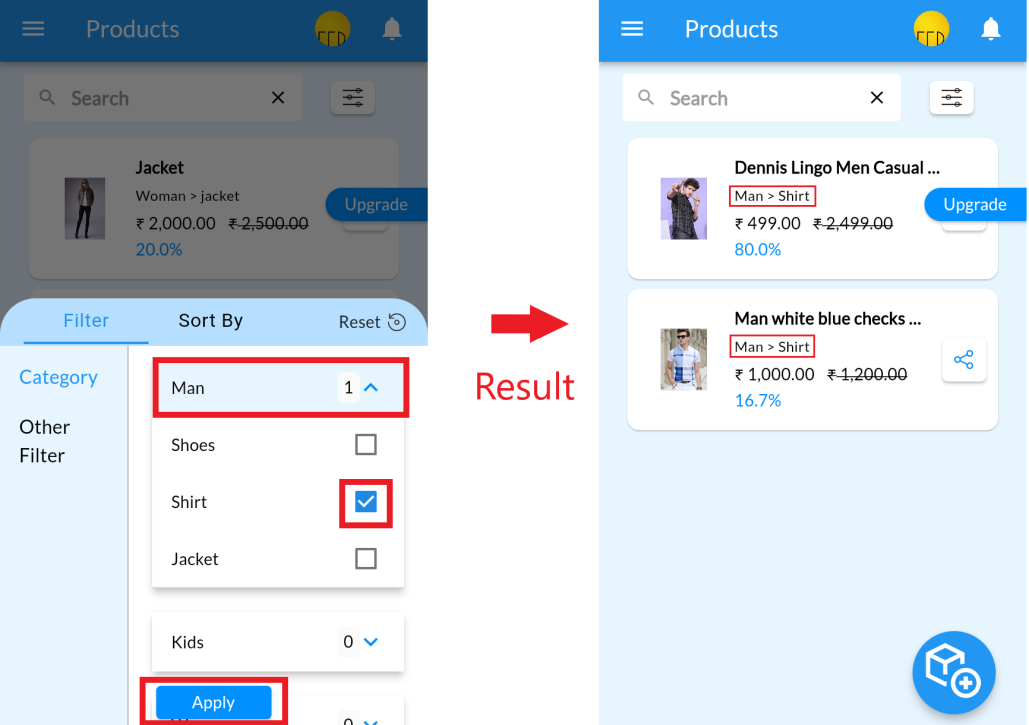
- Active/ Inactive Status

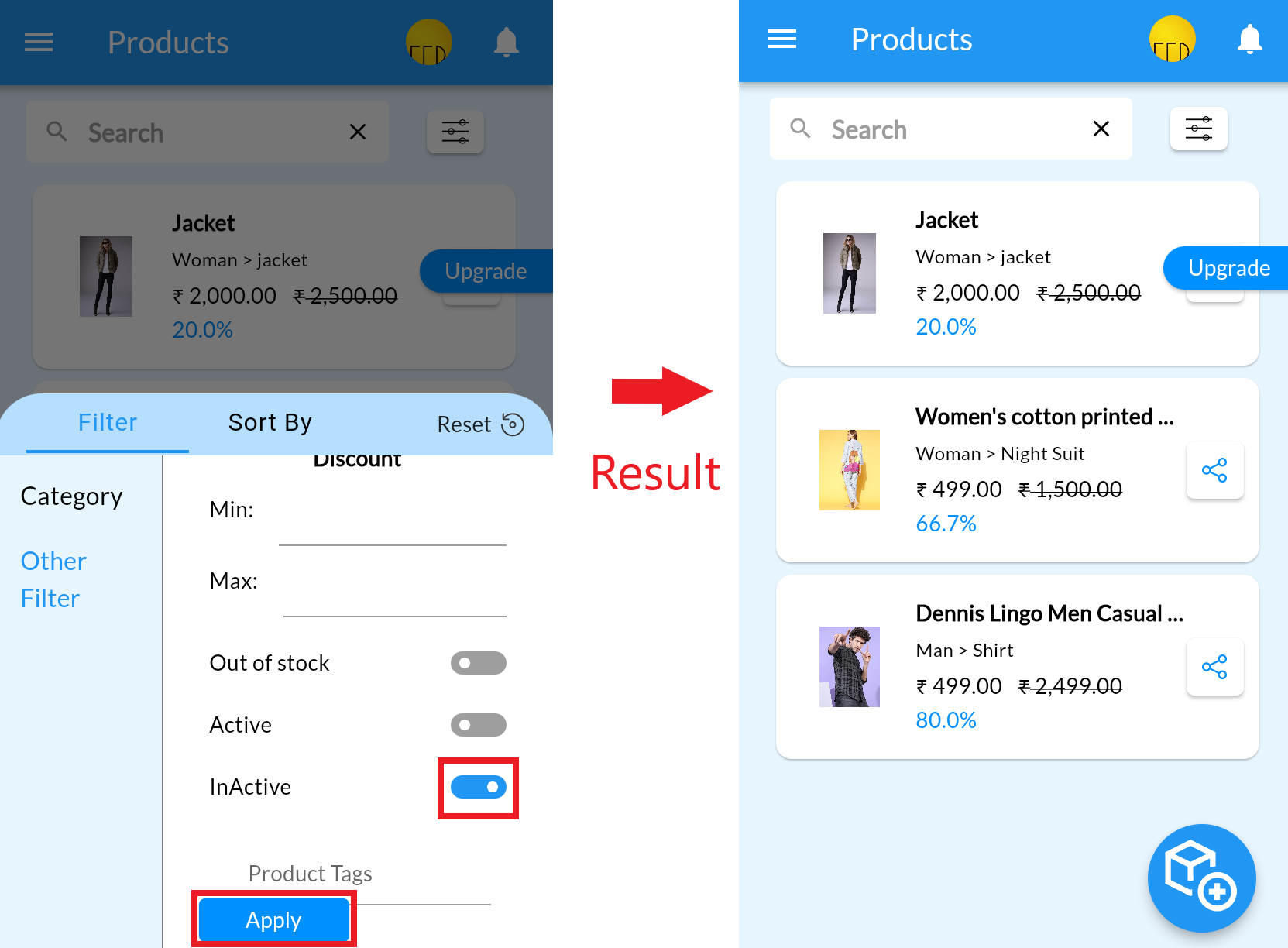
- Product Tag
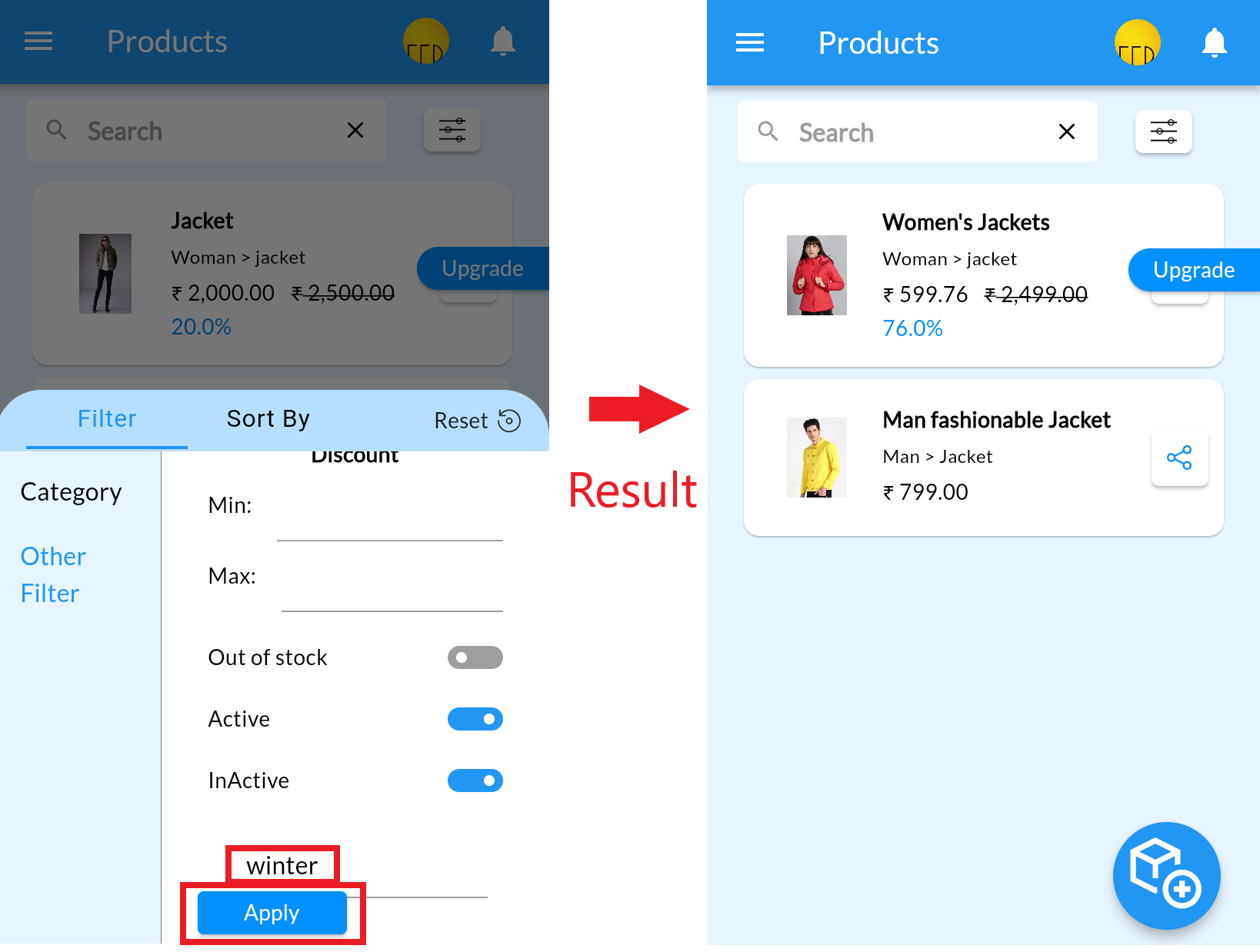
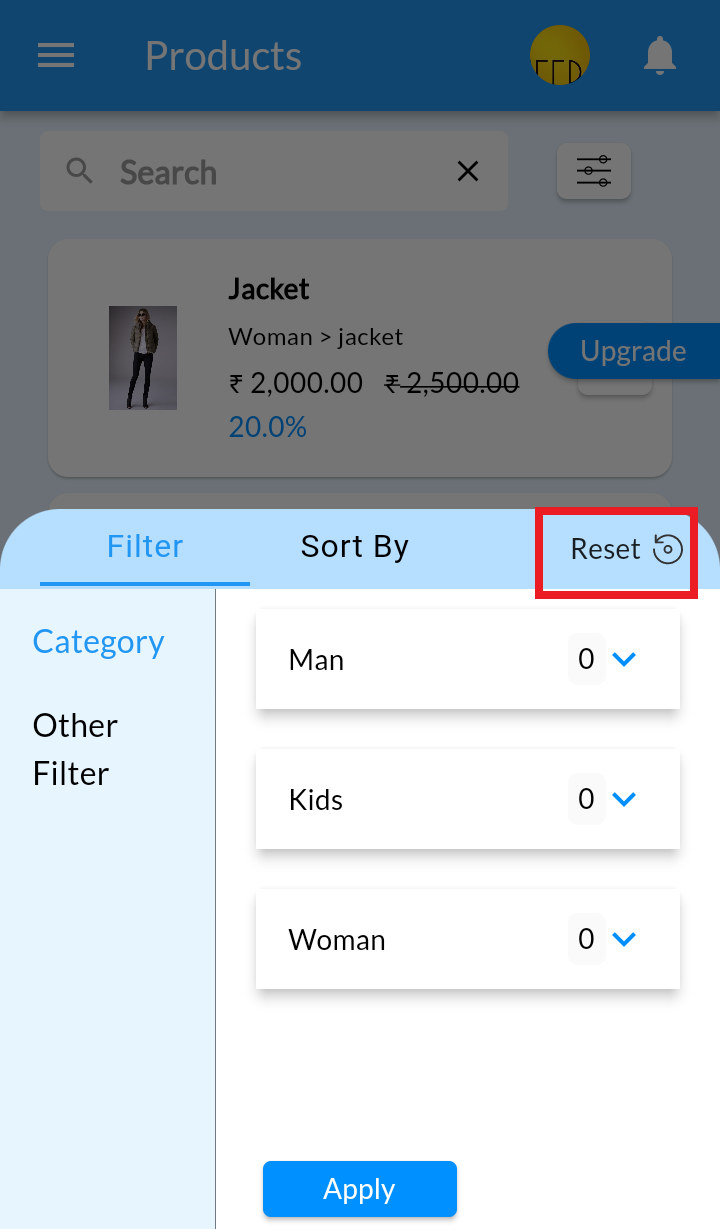
5. You can also search by Min max discount, or availability. Click on Reset to remove all filters.
Delete Product from List #
Desktop
- From your MoreCustomersApp admin panel , select Products
- In Manage Products you can see all the products added to your store
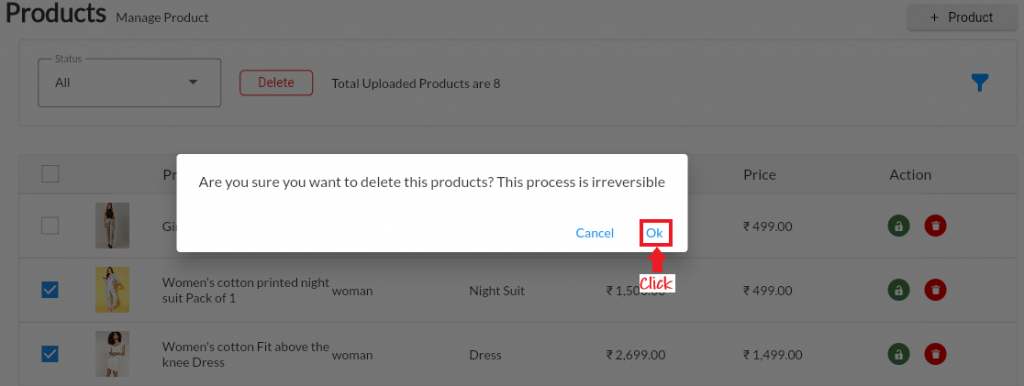
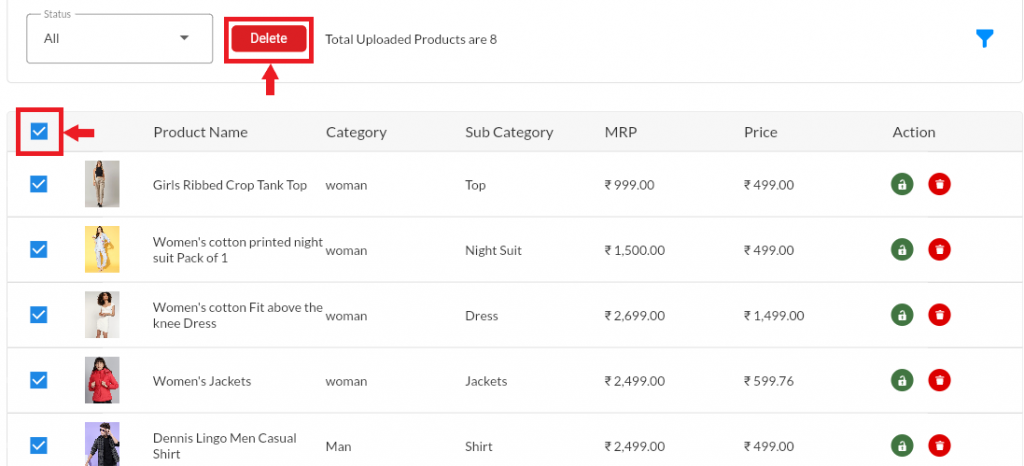
- Select the checkbox of the product you need to delete. On selecting Delete button will be visible.
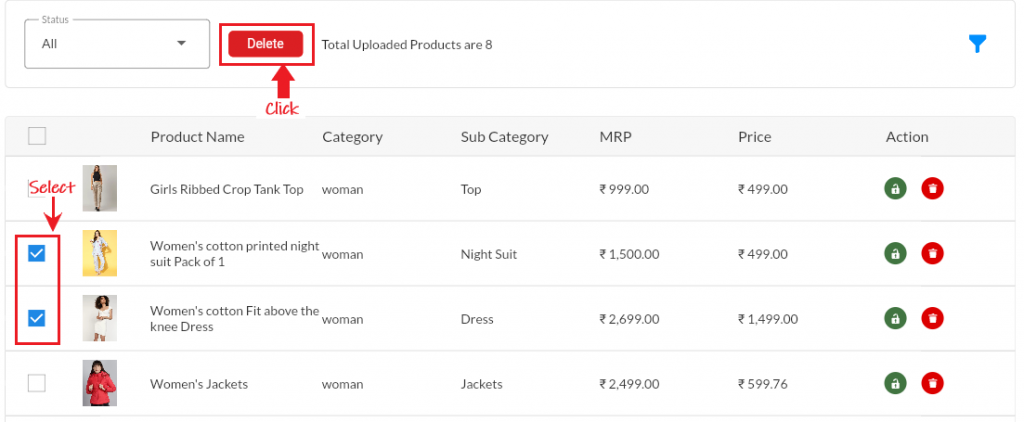
- Click on Delete Button. A notification will be asked , press OK accordingly.
- If you wish to delete all products, then click on checkbox on top of list and perform the Step 4
Android
1. Login into MCA Admin App
2. Click on , Select Products

3. From Product List, long press on product and click on delete. Note: You can select multiple products to delete
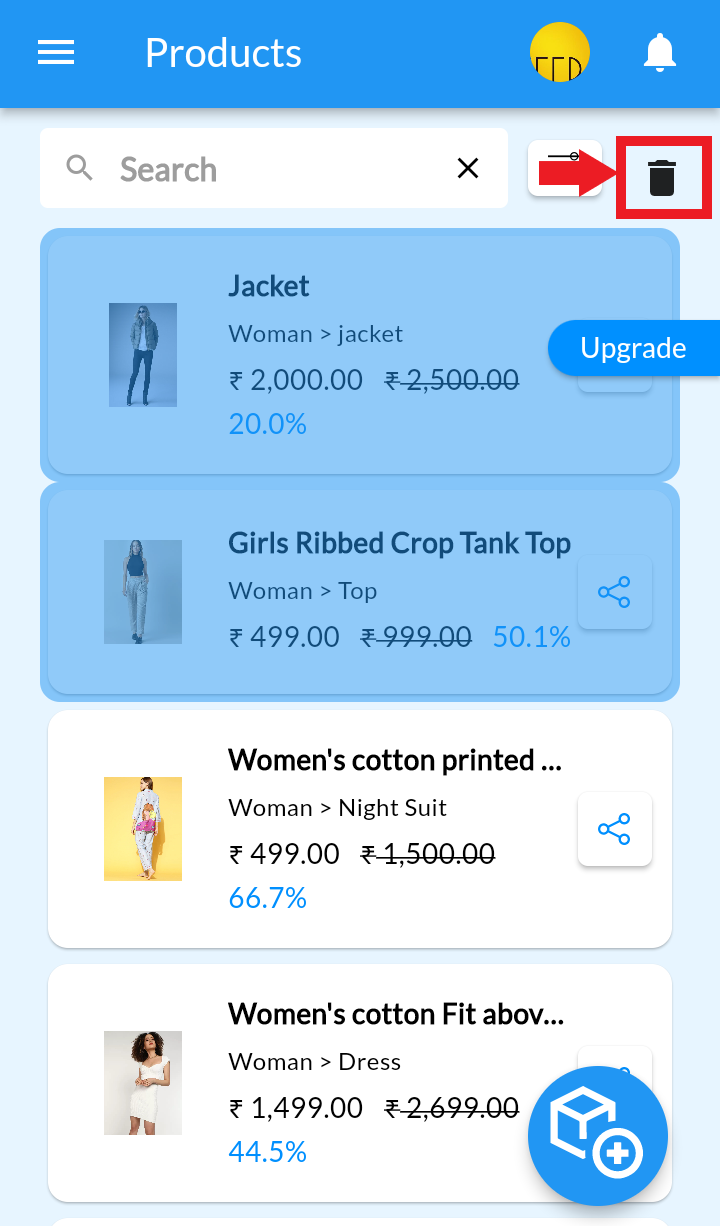
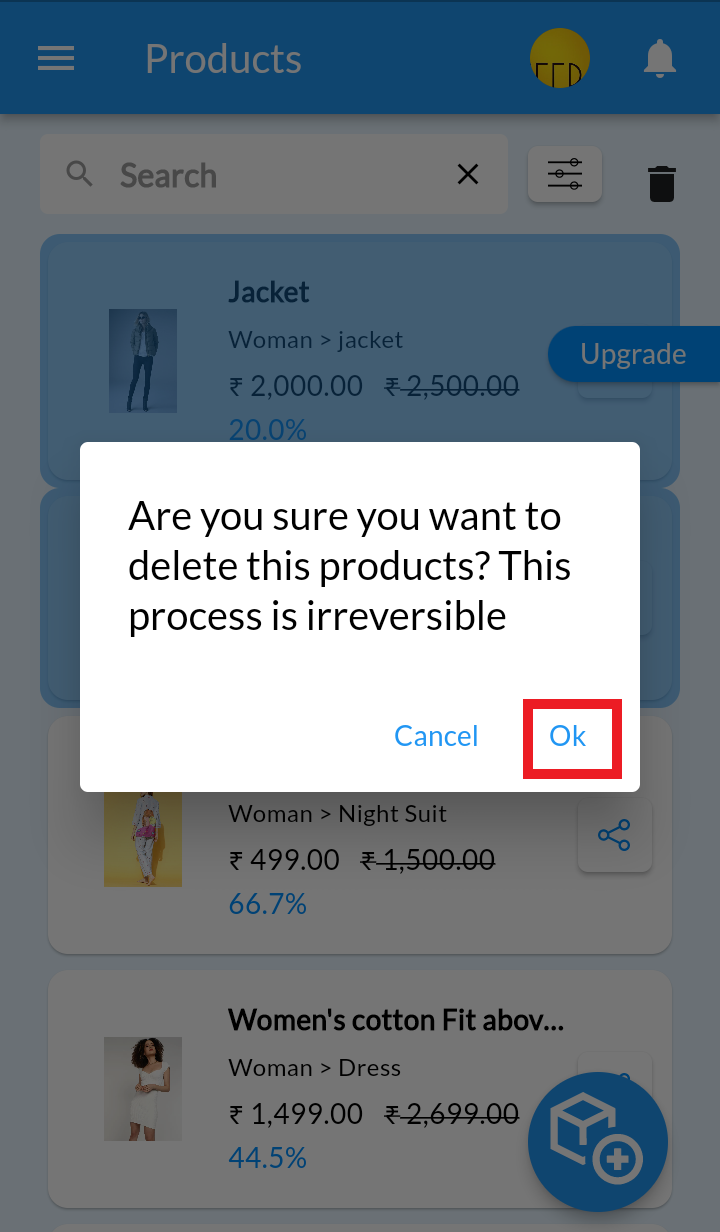
4. Click on Delete icon, Accept the warning and click on OK
Sorting of Product List #
Desktop
1. From your MoreCustomersApp admin panel , select Products
2. In Manage Products you can see all the products added to your store
3. Click on Any Column in Product List Page and it will sort the column Alphabetically or from Low-to-High and vice versa
- Category/Sub -Category — in alphabetical order or reverse alphabetical order
- Views/Inquiries/Orders — sorting based on numeric number low to high or high to low
- Price: low to high or Price: high to low — sorting based on the product price value
- Name: A to Z or Name: A to Z — sorting based on the product title, in alphabetical order or reverse alphabetical order

Android
1. Login into MCA Admin App
2. Click on , Select Products
3. Click on Filter button to apply sorting of Products. Click on Sort By.

4. You can set product list in Alphabetical order, according to Added date, Price, and Discount.
- Alphabetical order : A to Z

- Alphabetical Order : Z to A

- Added Date : New - Old

- Added Date : Old - New
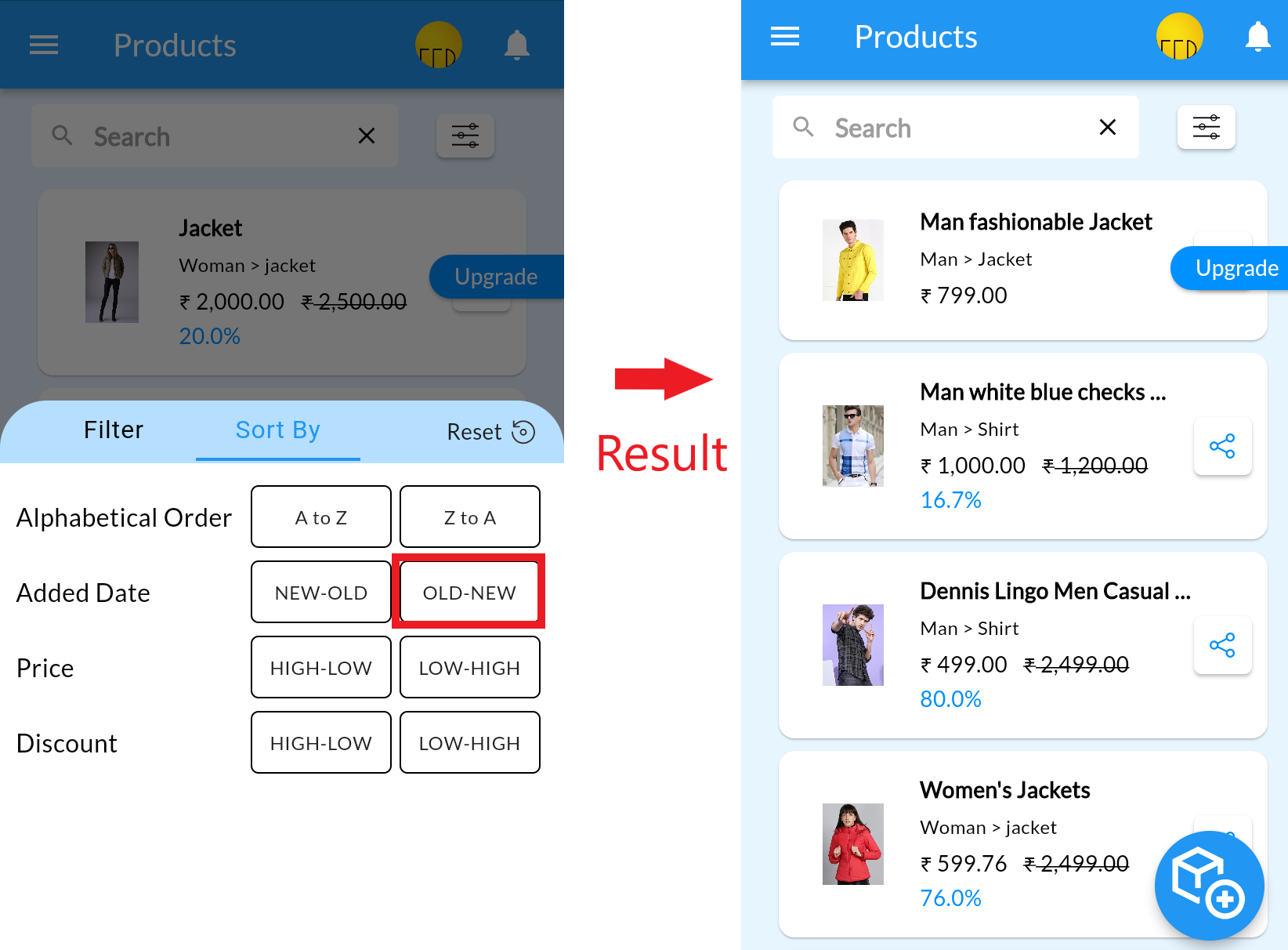
- Price : High - Low
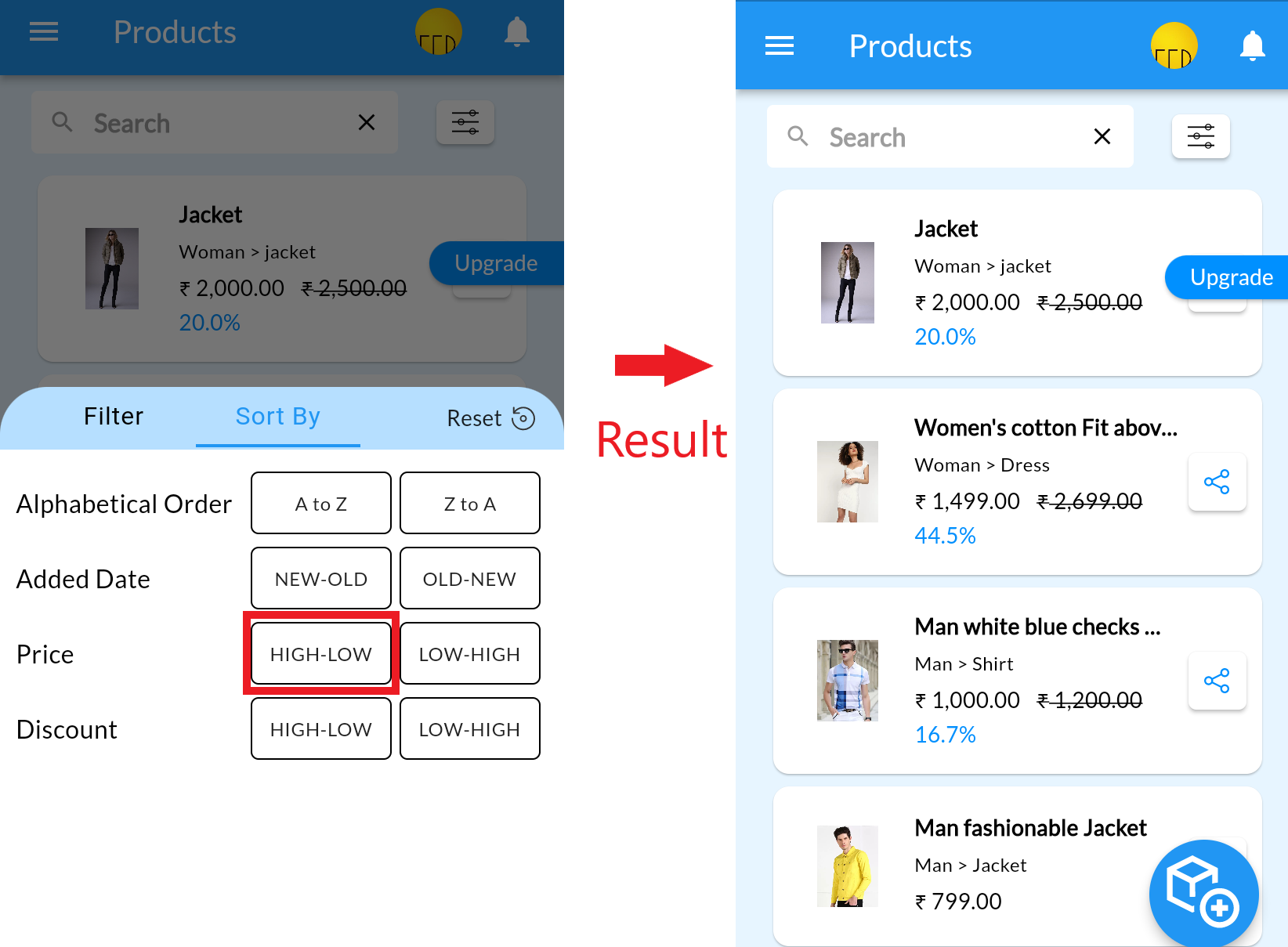
- Price : Low - High

- Discount : High - Low
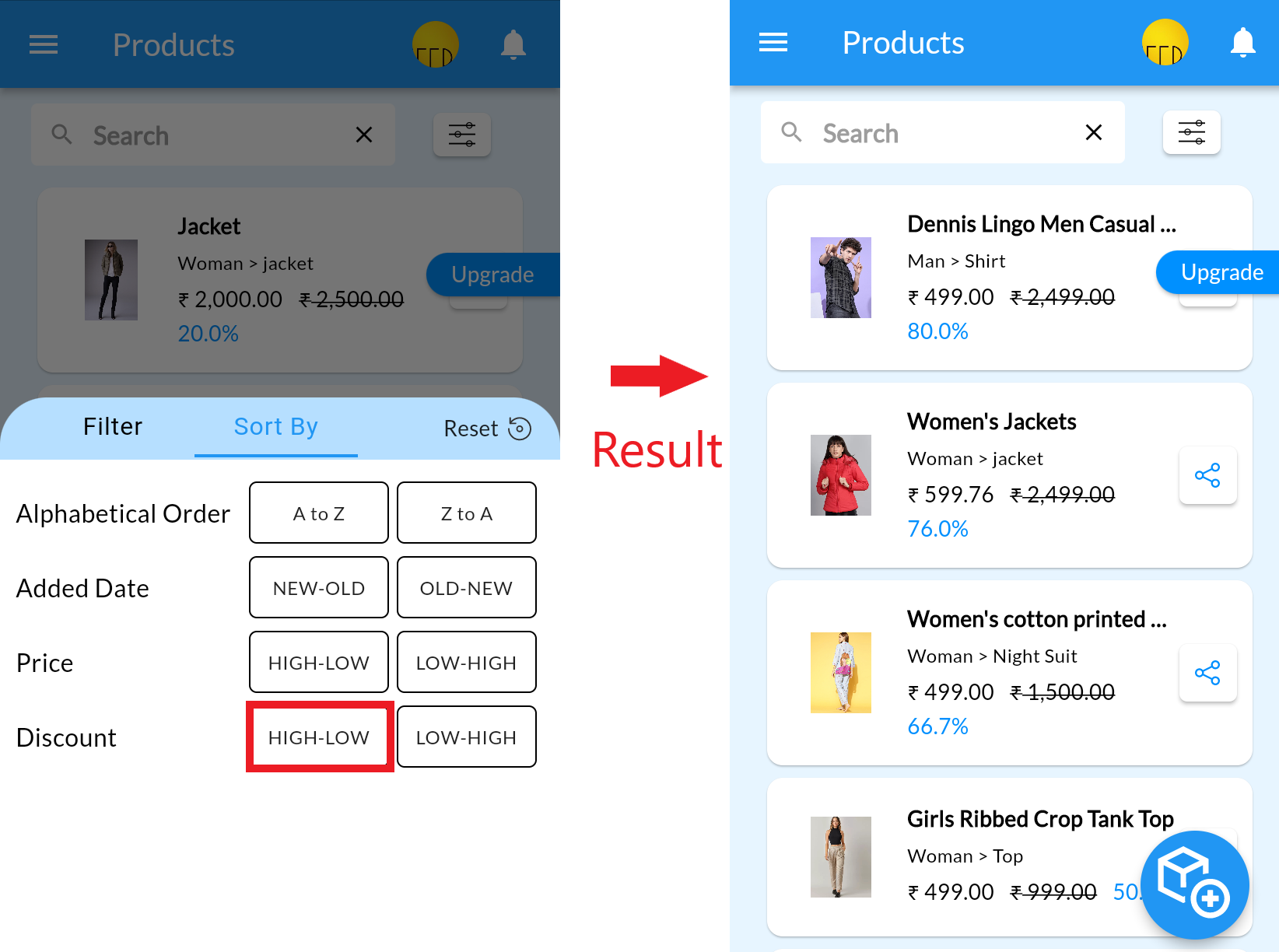
- Discount : Low - High
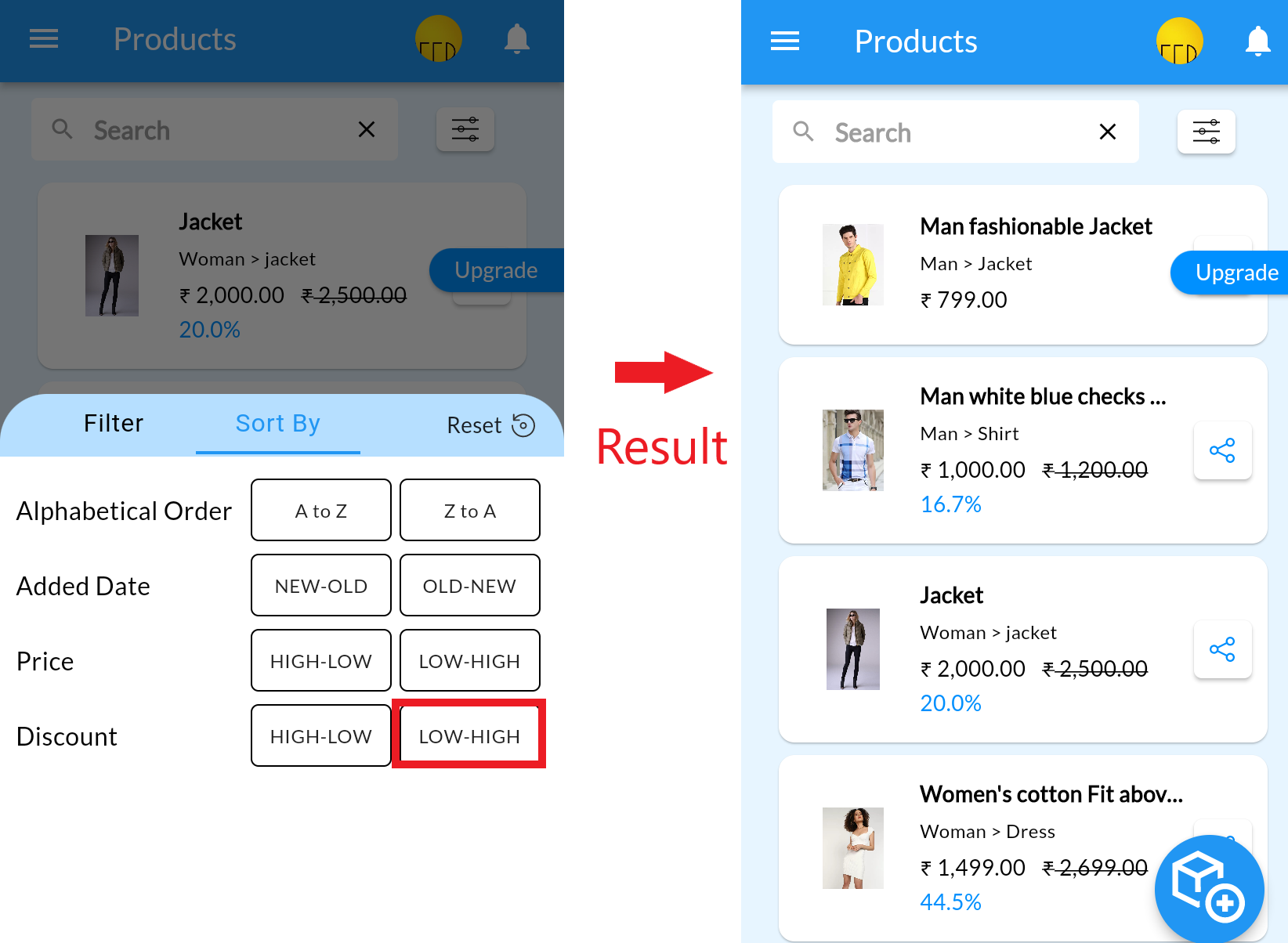
Actions on the Product List Page from Mobile Admin Panel #
Search Products
1. Open the MCA Admin App and click on , select Products
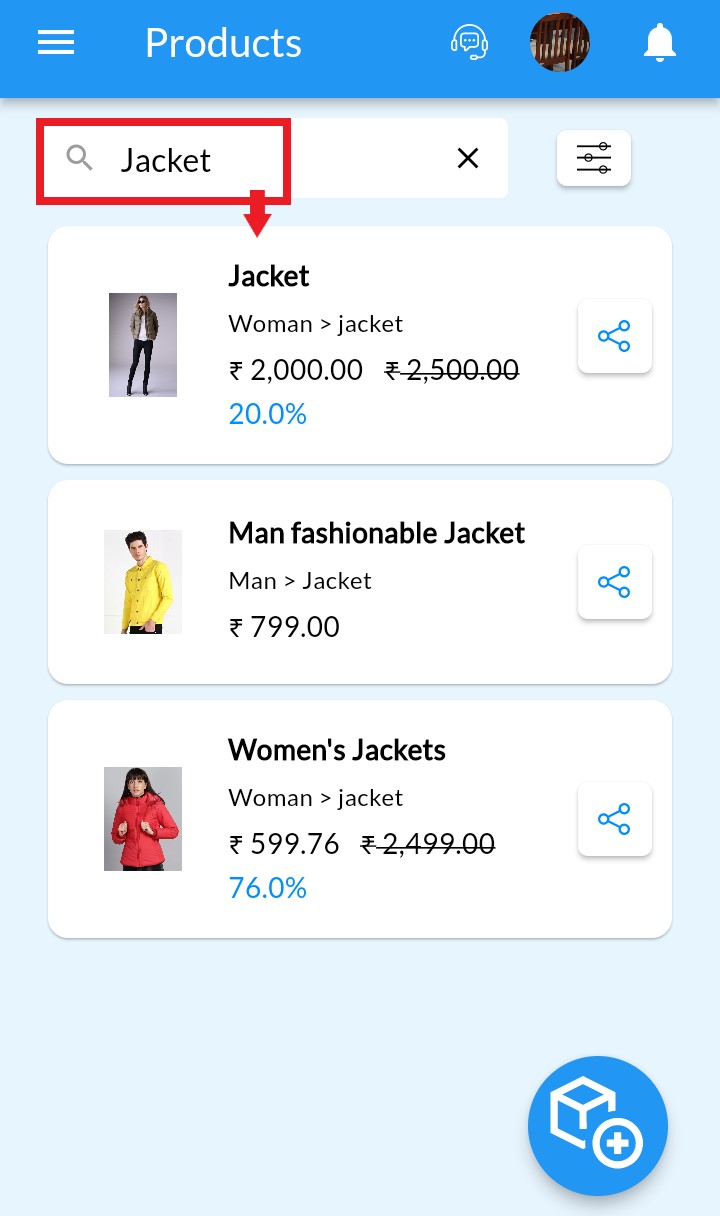
2. Click on Search Icon and type the Name or Description of Product

3. Add search text For eg Jacket and enter. Note(To clear the Search bar, just click on x in search box to get all products back.)
Share Product
1. Open the MCA Admin App and click on , select Products
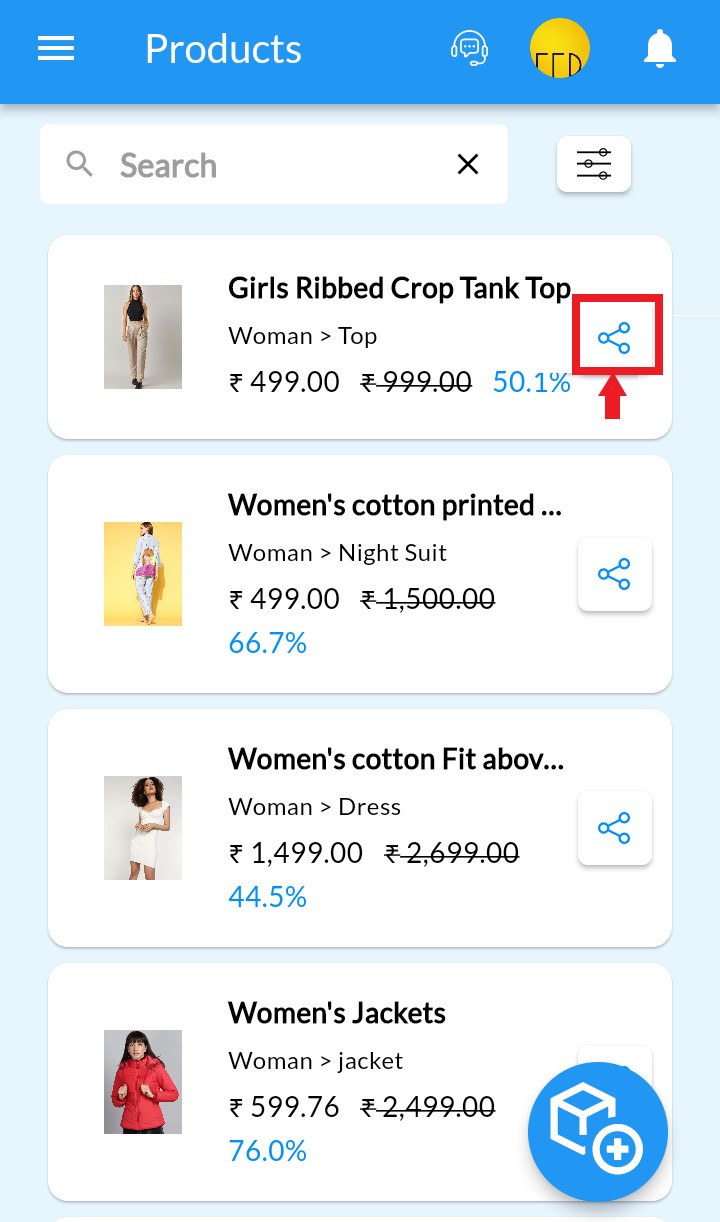
2. Click on Share icon to share product.
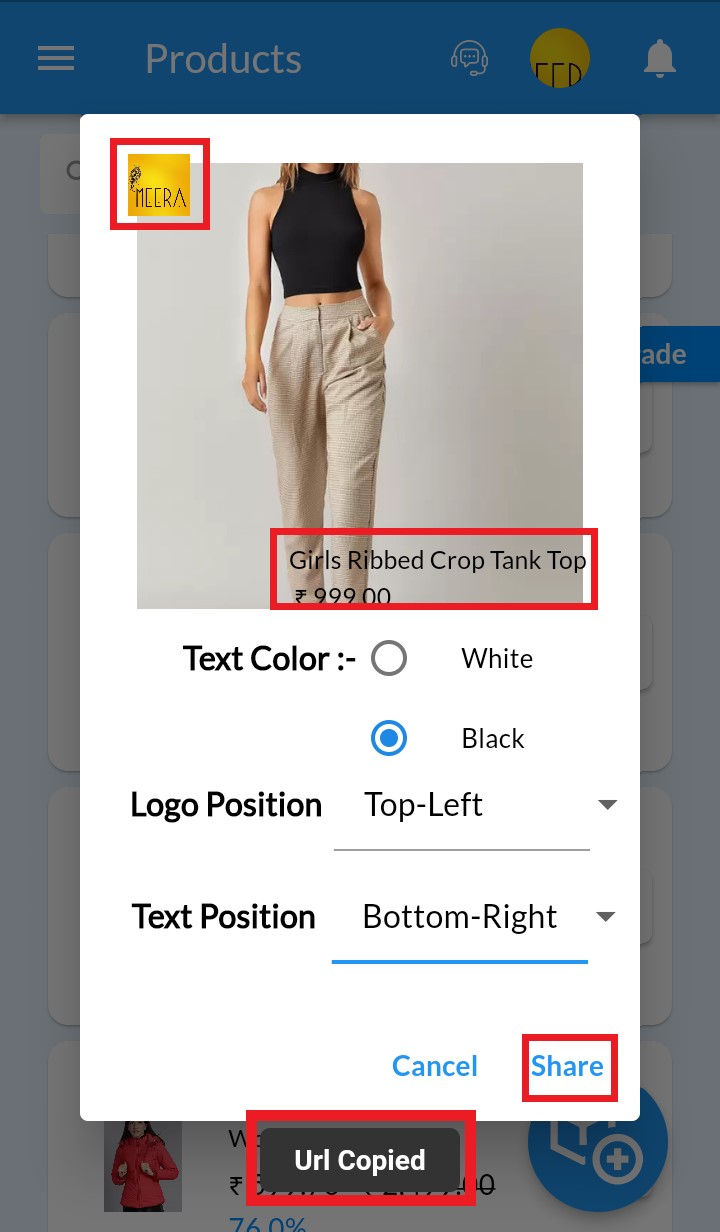
3. After click on share icon, Product URL is copied automatically. MoreCustomersApp allows you to add some more information of product along with link like you can share product with your logo, product name with price on your product image. You can adjust content left,right,center or bottom as per your image.
4. Click on Share button to see share options on your device.
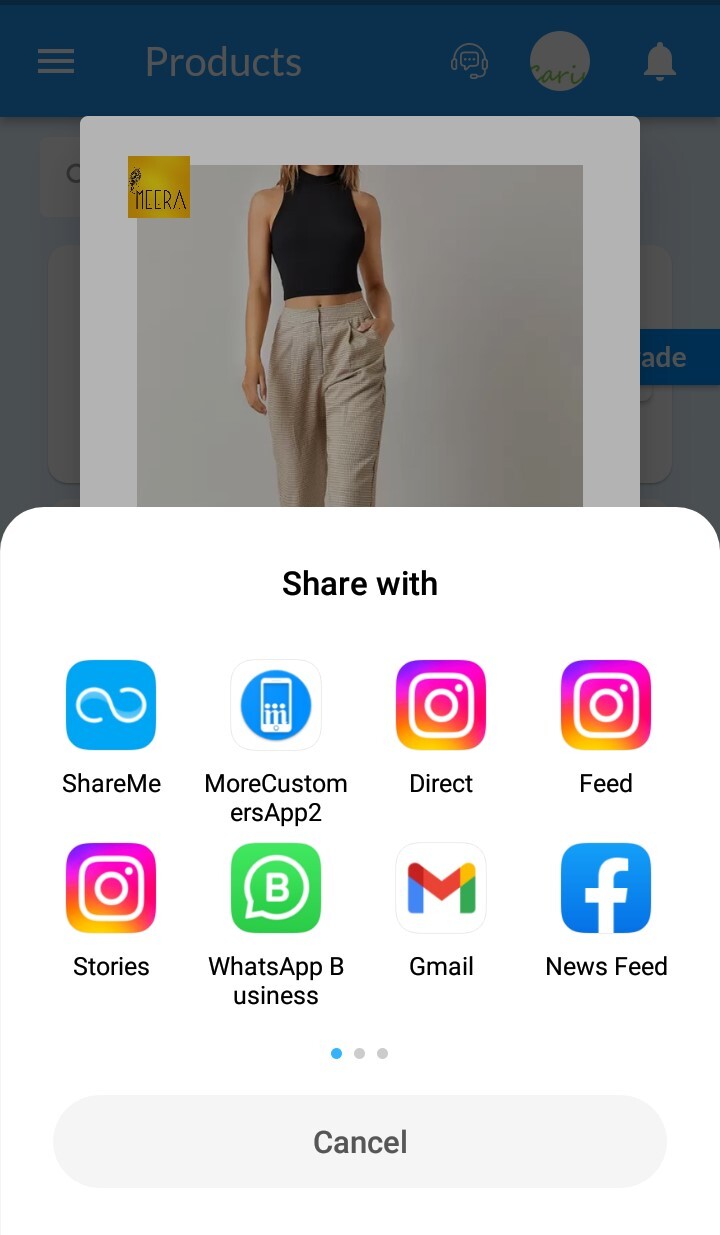
5. Product link will be sent. Kindly check here on WhatsApp Share.