Variation in size or color is the very first impression a customer gathers about his available choices. Product variation makes your business more competitive as it focuses on the cost value of the product against similar products in the market without compromising on the price.
Product variants allow businesses to determine how many variations of an individual product are available. For example, if a product such as a t-shirt is available in five different sizes and four different colors, then there is a total of 20 variations of the same product. You can define variants like Color, Size, and fabric, or in these variants, you can define sub-variant like light blue, XL with their price, and inventory too.
MoreCustomersApp gives the facility to have the same price for each option or a different one for each option.
Product Variants Available on All Plans >>> Start Free Trial
Add Product Variant #
Desktop
- From your MoreCustomersApp admin panel , select Products
- In Manage Products , select the product you want to add variations
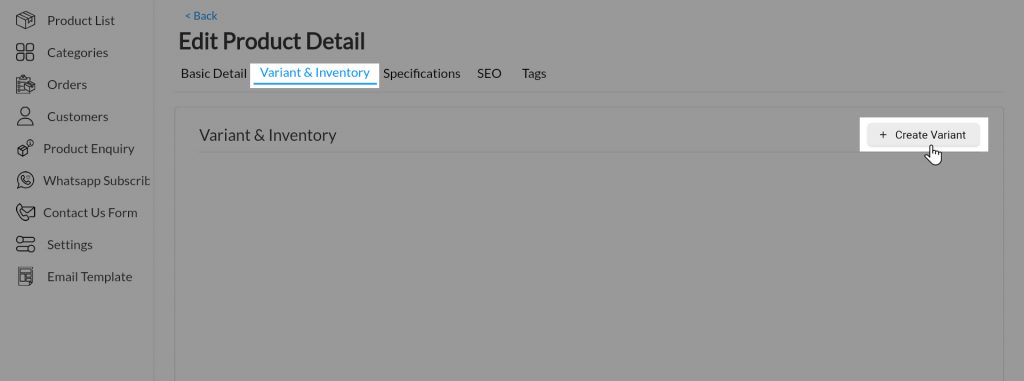
- In Edit Product Details click on Variant and Inventory.
- Click on +Create Variant to add a new variant.
- In Add Attribute Box write Attribute Name and Value. (Ex : Attribute name: Color; attribute value: red, black, white. etc. Attribute values should be comma separated value.)
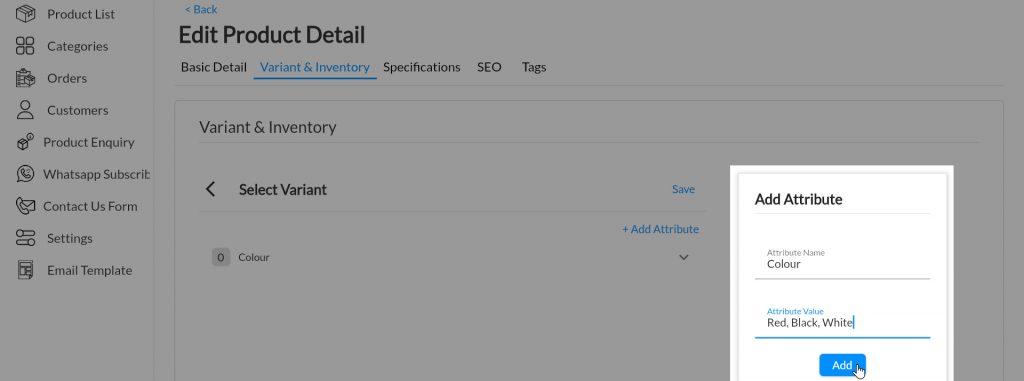
- Click on ADD button
- You can see the added variant in list. To Add New Variant click on +Add Attribute.
- You have successfully created variant now to add it to product, click on newly created variant. Select options that you need to show for that variant to customer and click on SAVE button.
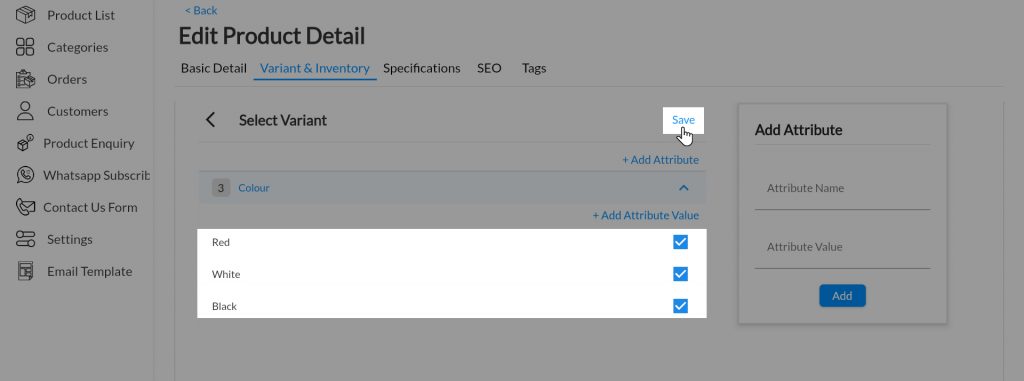
- To add more options to existing variant, Click on +Add Attribute Value
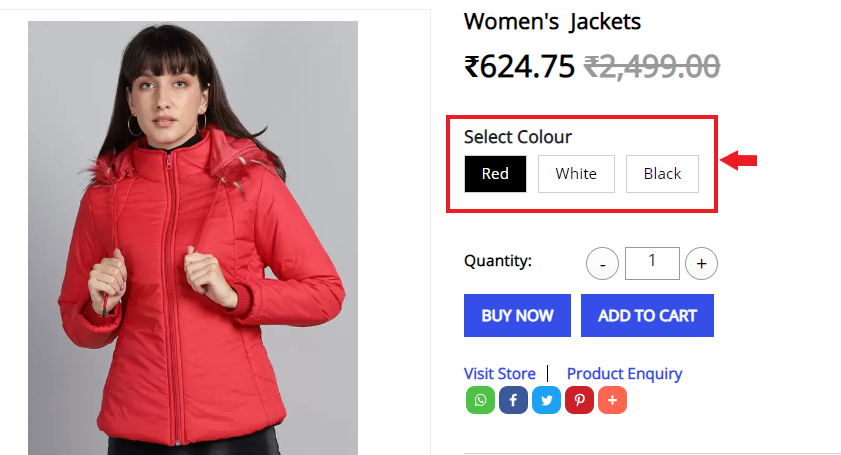
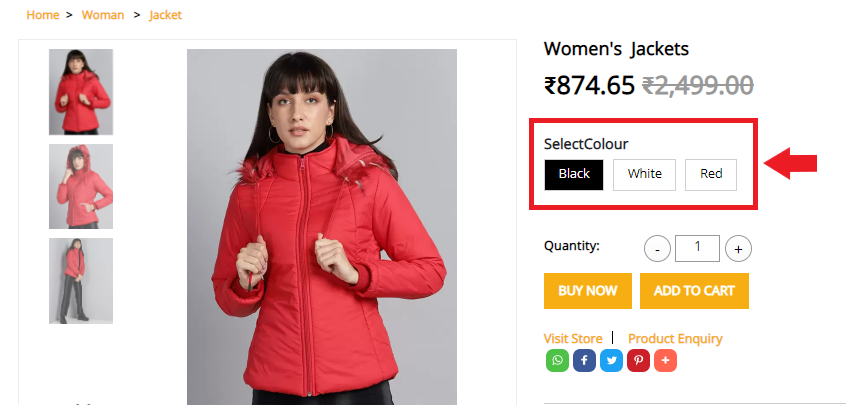
- View the newly created Product Variant on your Website
- MoreCustomersApp gives website owners the facility to set product inventory according to its variants. Effective Inventory Management increase a website's sales value. Learn How to Manage Product Inventory.
- Our eCommerce Solution also helps store owners to set prices according to product variants. They can keep a Flat price for all options or variations according to their business needs. This flexibility is mostly required for clothing, grocery stores, or pharmacy store businesses.
Android
1. Login into MCA Admin App
2. Click on  , and select Products.
3. Click on More and select Manage Variant.
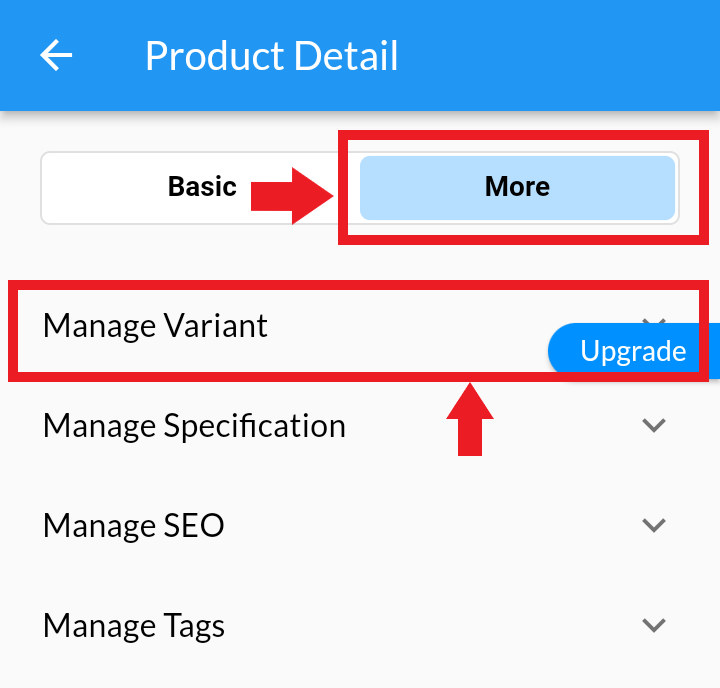
4. Click on +Create Variant, and then on +Add Attribute.
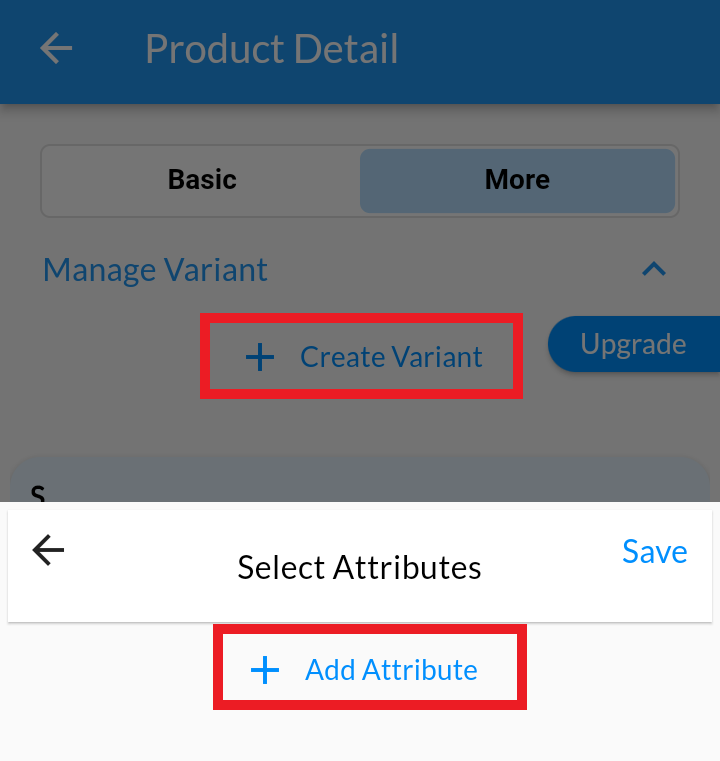
5. Add Attribute name and Attribute value level. (Ex : Attribute name: Color; attribute value: red, black, white. etc. Attribute values should be comma separated value.) and Click on Add Button.
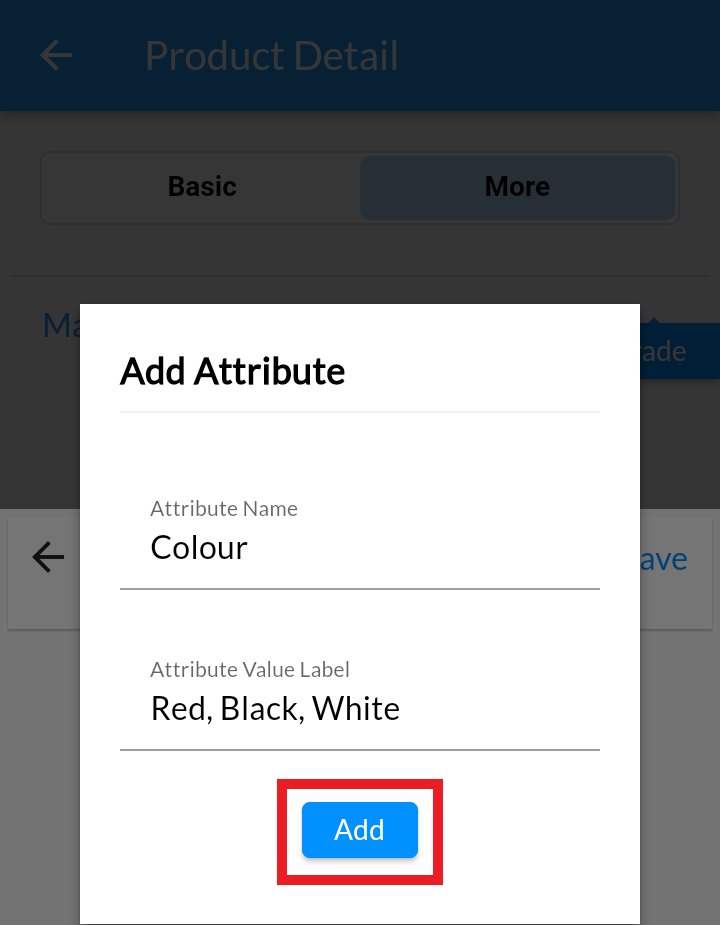
6. Now, Click on down arrow button of Attribute and select attribute value you want to show in product. Click on Save.
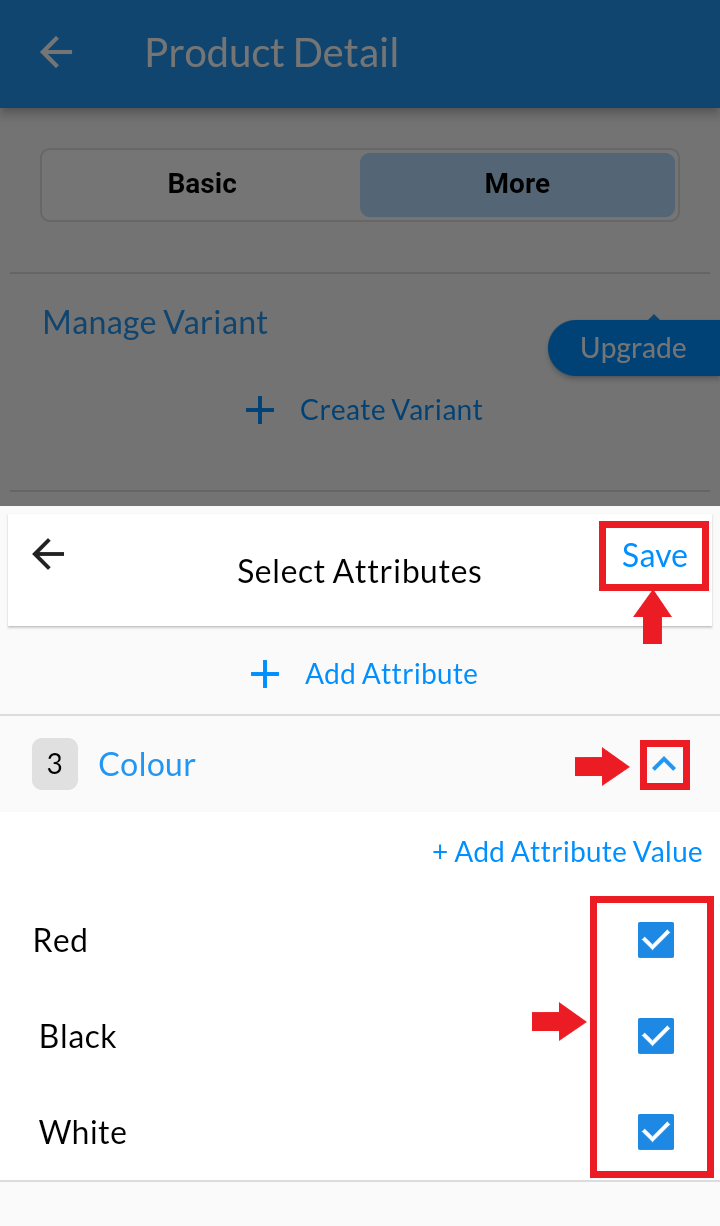
7. To add more options to existing variant, Click on +Add Attribute Value.
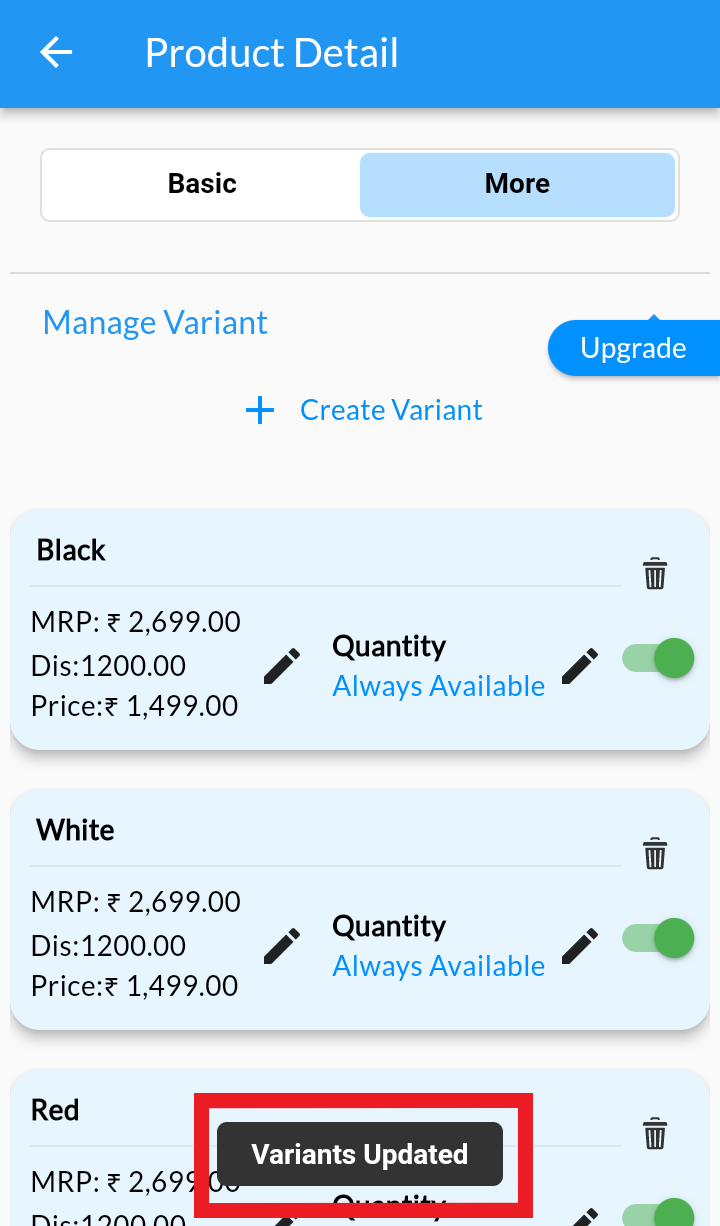
8. You can change order of your added attribute values. Do Long press on the value and drag it according to your choice. After changes you will get the notification.
9. View from website
Edit Product Variant #
Desktop
- From your MoreCustomersApp admin panel , select Products
- From Product List select the product you need to edit variant
- In Edit Product Details click on Variant and inventory.
- Edit Price, Discount or Inventory of Variant's Option. (Note: Variant's Name and it's value once created cannot be edited)
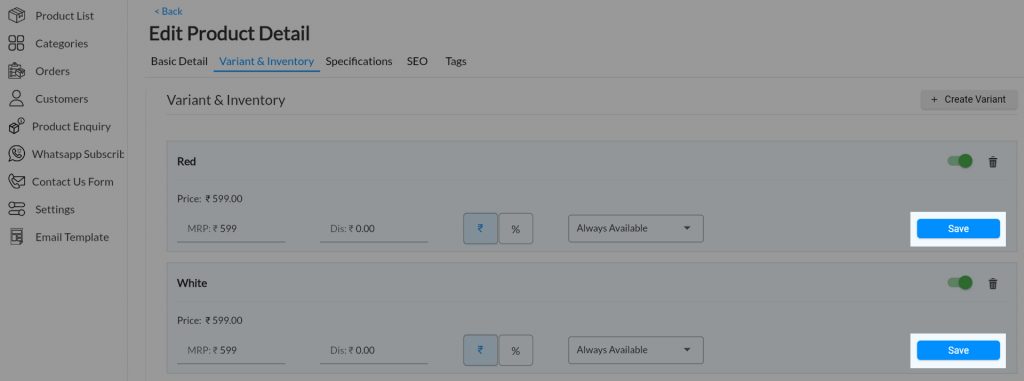
- Click on SAVE button of each variant to save the changes.
Android
1. Login into MCA Admin App
2. Click on , and select Products.
3. Click on More and select Manage Variant.
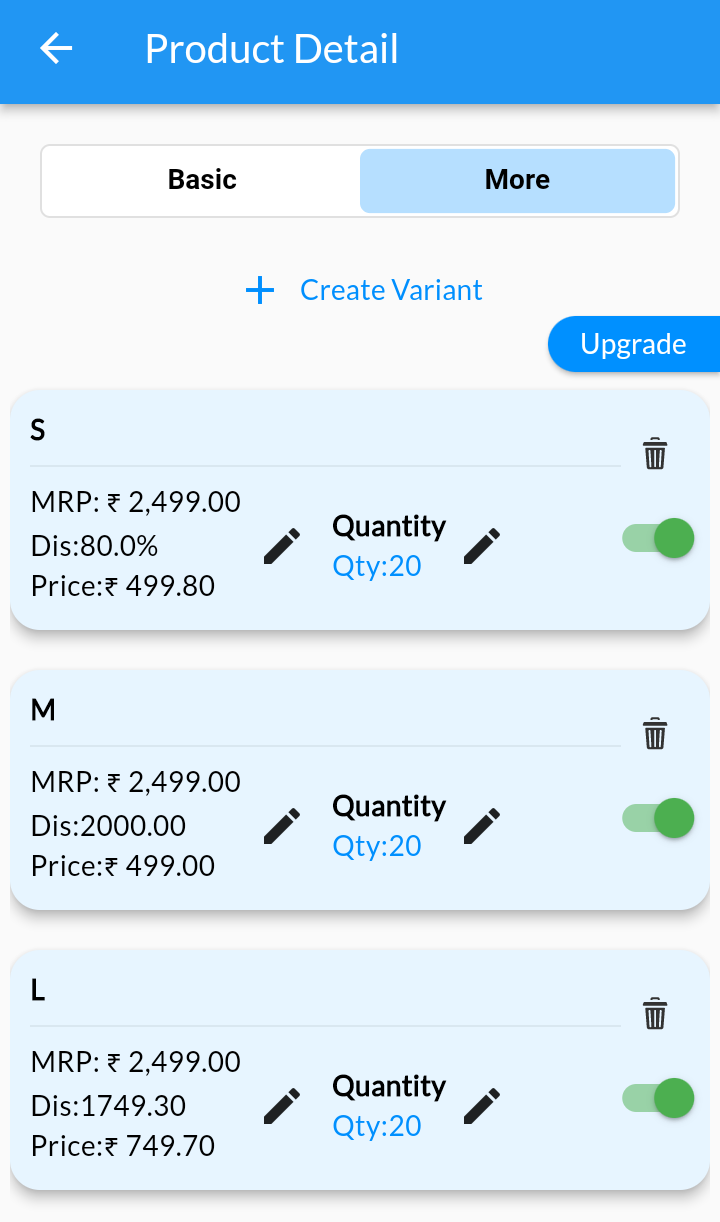
4. List of variants are displayed. Edit Price, Discount or Inventory of Variant's Option. (Note: Variant's Name and it's value once created cannot be edited)
5. Click on SAVE button of each variant to save the changes.
Set Product Variant Price #
Desktop
- From your MoreCustomersApp admin panel , select Products.
- In Manage Products , select the product whose price you need to change
- In Edit Product Details click on Variant and Inventory.
- Here you can set Price for each variant of a product
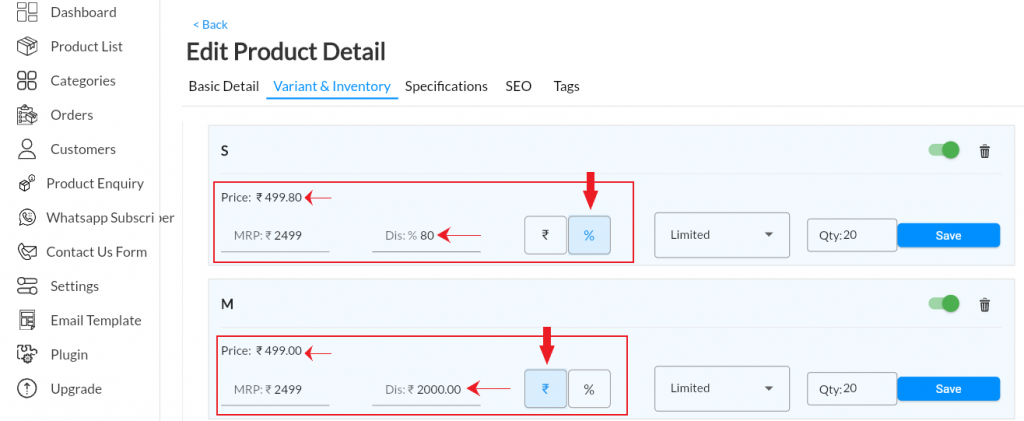
- You can set Discount as in Rupees or Percentage OFF (Write 0 if there is no discount.)
- Click on Save
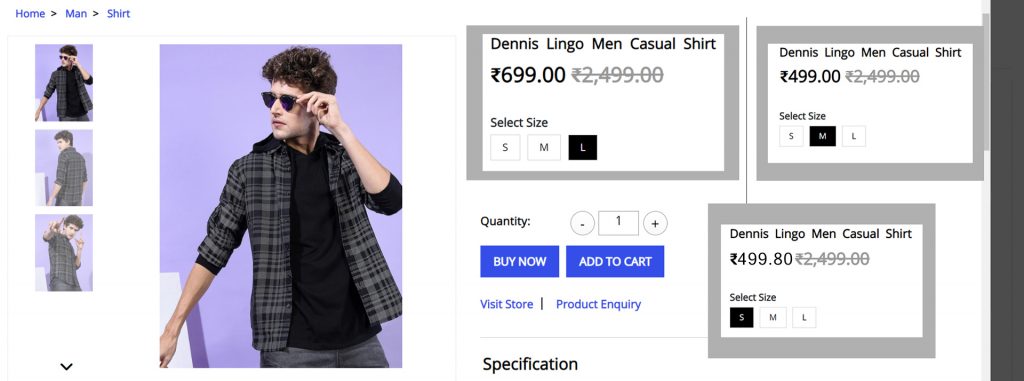
- After discount price will automatically show there. If you set different prices and discount (as in rupees or percentage)for different size, it will show on your website. Customer will select size and he will able to see your different price.
Android
1. Login into MCA Admin App
2. Click on , and select Products.
3. Click on More and select Manage Variant.
4. Click on the pencil button next to the price to edit.
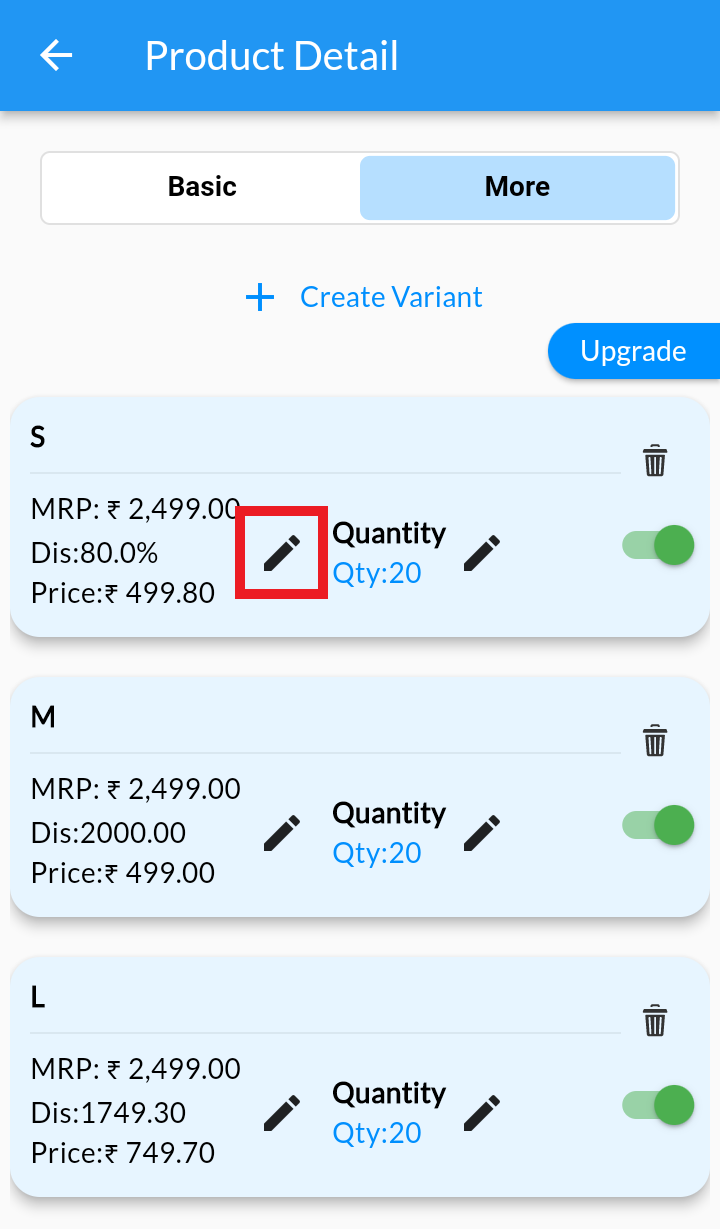
5. Here you can set price for each variant of product. You can set discount as Percentage Off or rupees Off. (Write 0 if there is no discount.)
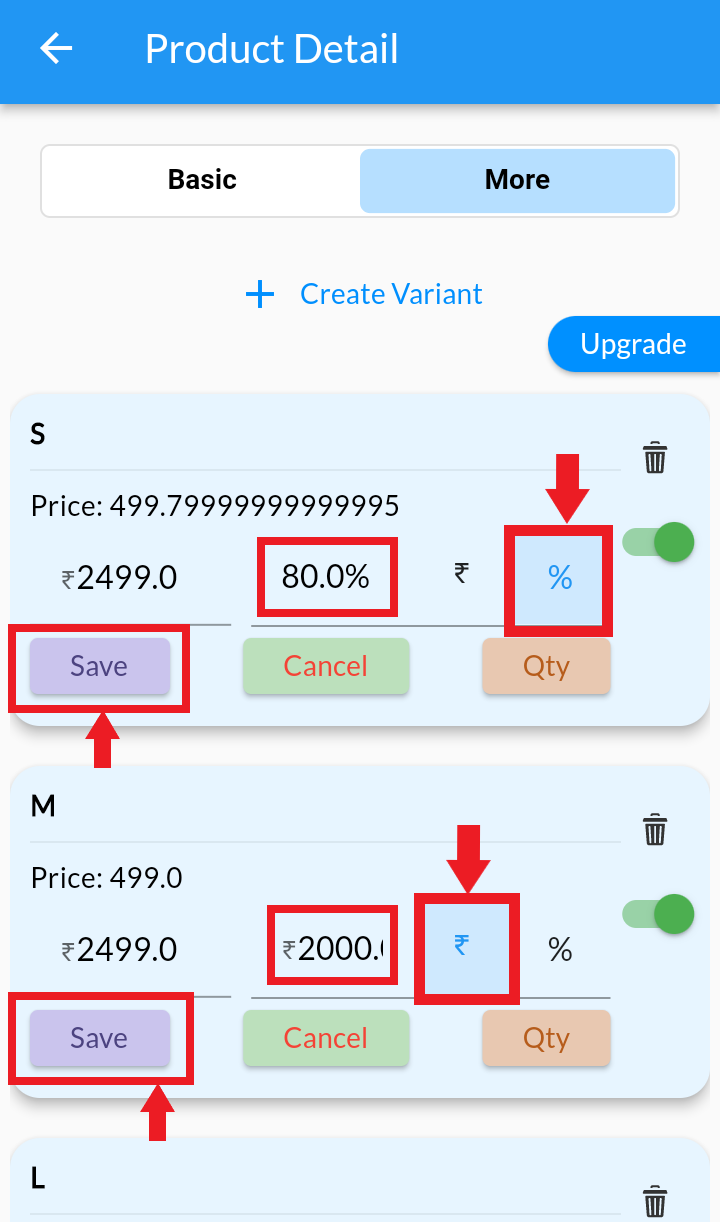
6. After discount price will automatically show there. If you set different prices and discount (as in rupees or percentage) for different size, it will show on your website. Customer will select size and he will able to see your different price.
7. Click on Save after all edits
Add/Edit Product Variant Inventory #
Desktop
- From your MoreCustomersApp admin panel , select Products
- In Manage Products , select the product you want to add variations
- In Edit Product Details click on Variant and Inventory.
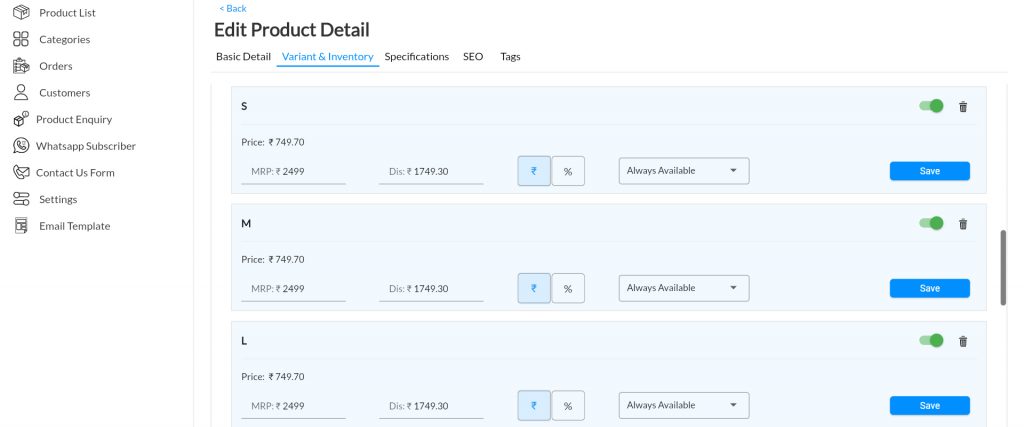
- If you select Qty as " Always Available" then customers on your website can purchase that product always and it never goes out of stock. (Note: This is an ideal case for those who are selling vendor sourced products.)
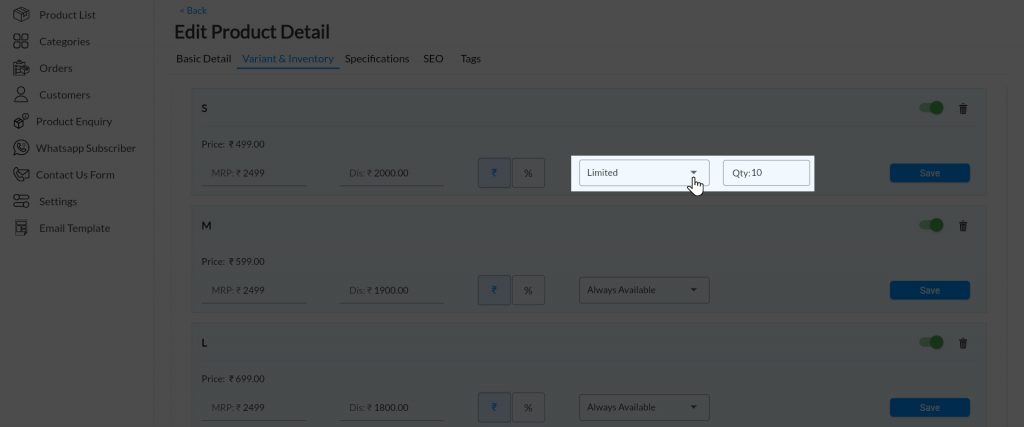
- Select Qty as "Limited". Automatic Inventory Management Feature is implemented on your store admin panel. If customer buys one qty of that product, than it will automatically reduce one qty.
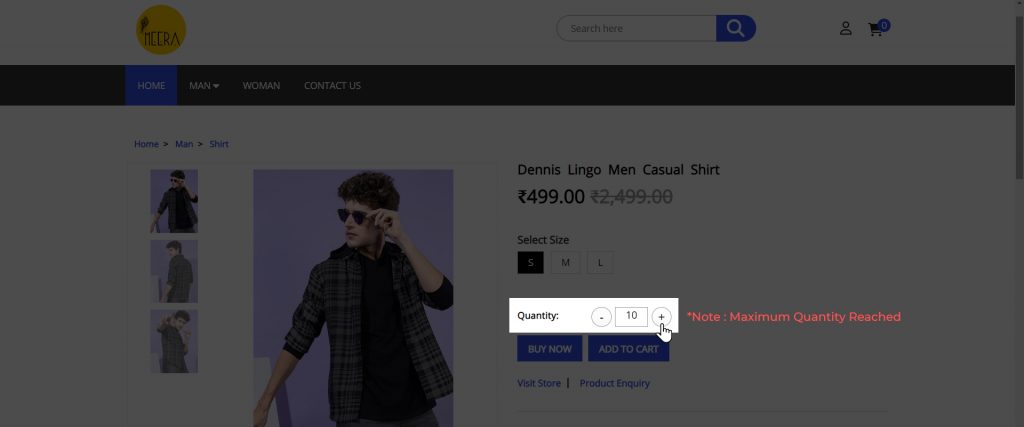
- Your customers won't be able to purchase if it exceeds the limited qty. (Note: If you set it as limited with quantity:10, customer will not able to select 11 quantity.it will stop automatically after 10)
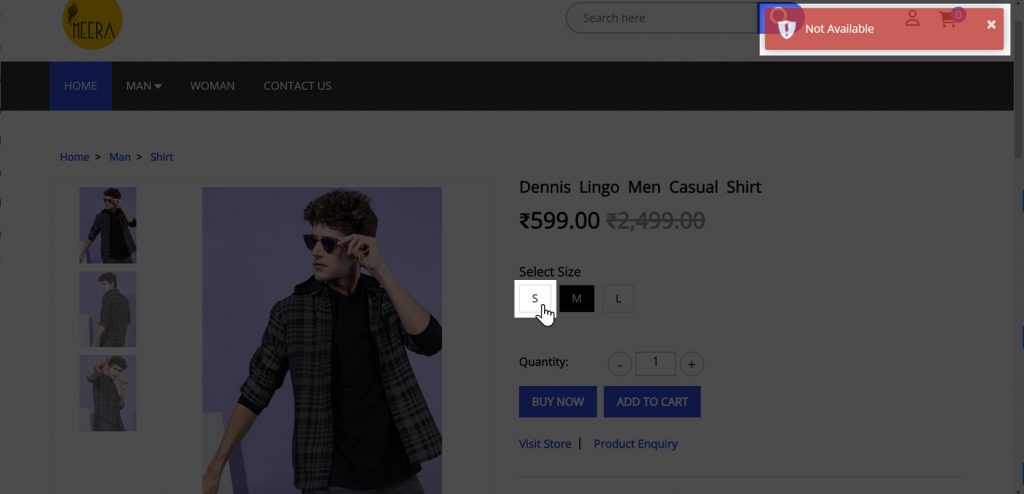
- Mention the Qty as "Not Available"
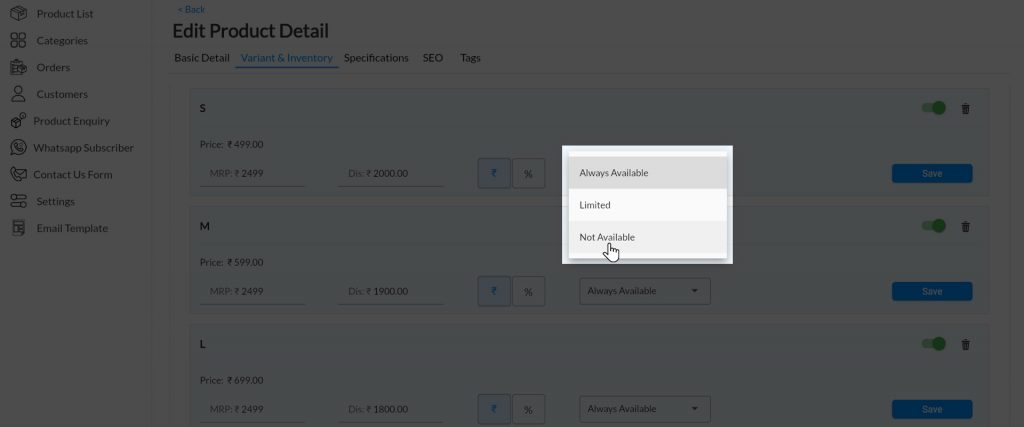
- Customer will not able to select that variant for buy.
Android
1. Login into MCA Admin App
2. Click on , and select Products.
3. Click on More and select Manage Variant.
4. Click on the pencil button next to the Quantity to edit.
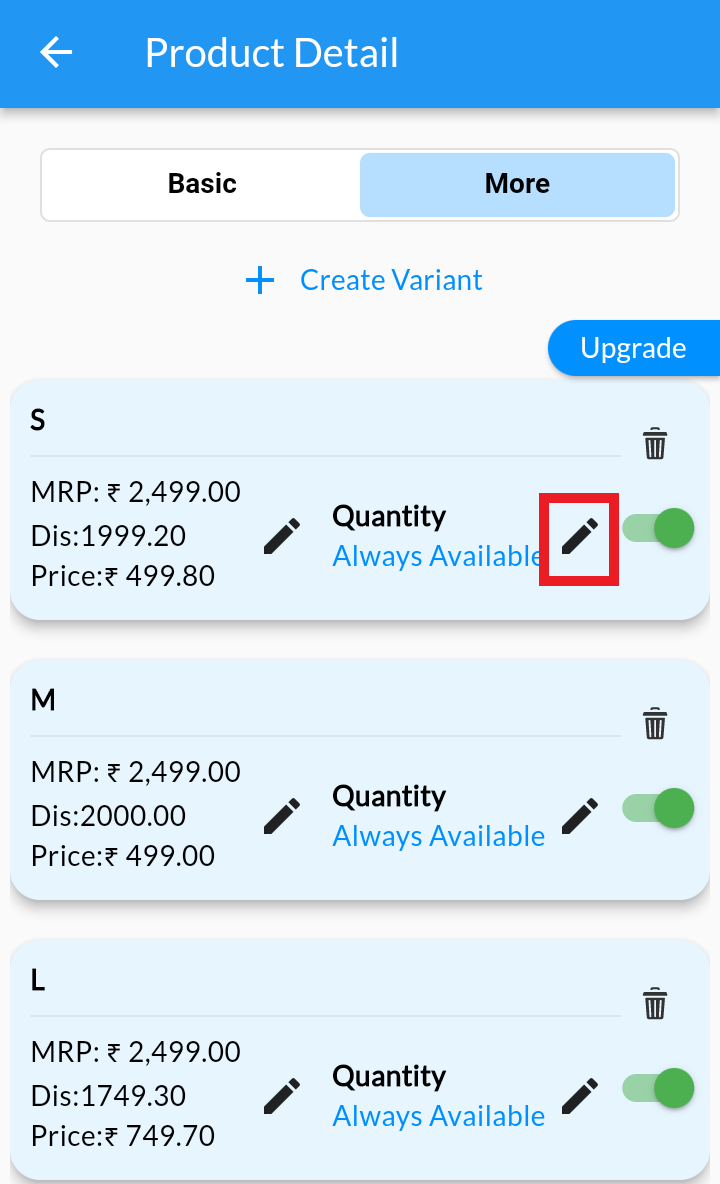
5. If you select quantity as "Always Available" then customers on your website can purchase that product always and it never goes out of stock.
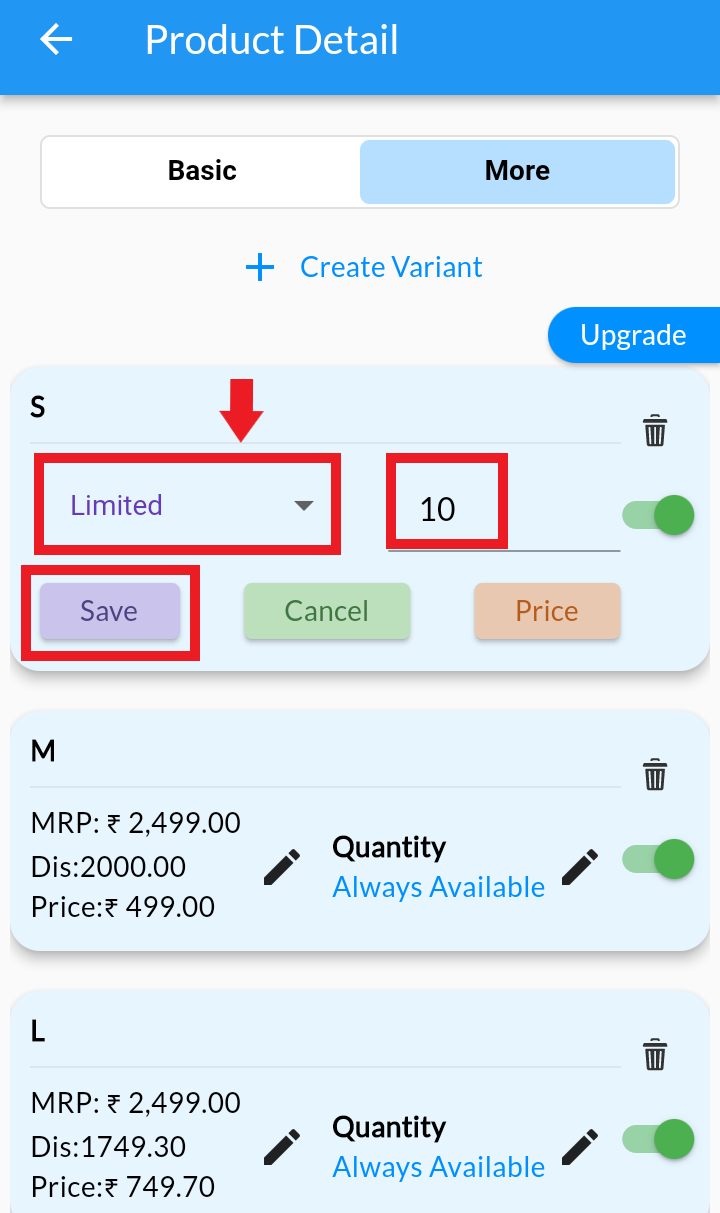
6. Select quantity as "Limited". If customer buys one quantity of that product, than it will automatically reduce one quantity.
7. Your customers won't be able to purchase if it exceeds the limited quantity (Note: If you set it as limited with quantity:10, customer will not able to select 11 quantity.it will stop automatically after 10.)
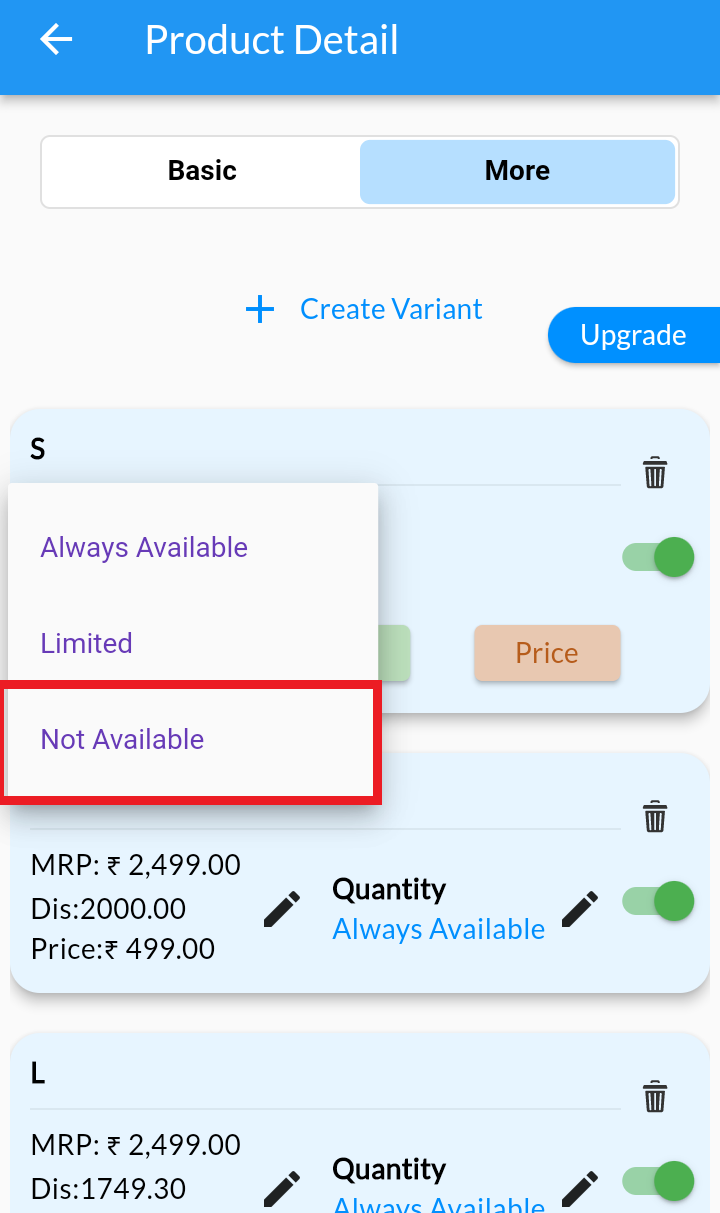
8. Mention the Quantity as "Not Available" , and customer won't be able to select that variant for buy.
9. Click on Save after all edits
Delete/InActive Product Variants #
Desktop
- From your MoreCustomersApp admin panel , select Products
- In Manage Products , select the product you want to edit variations.
- In Edit Product Details click on Variant and Inventory.
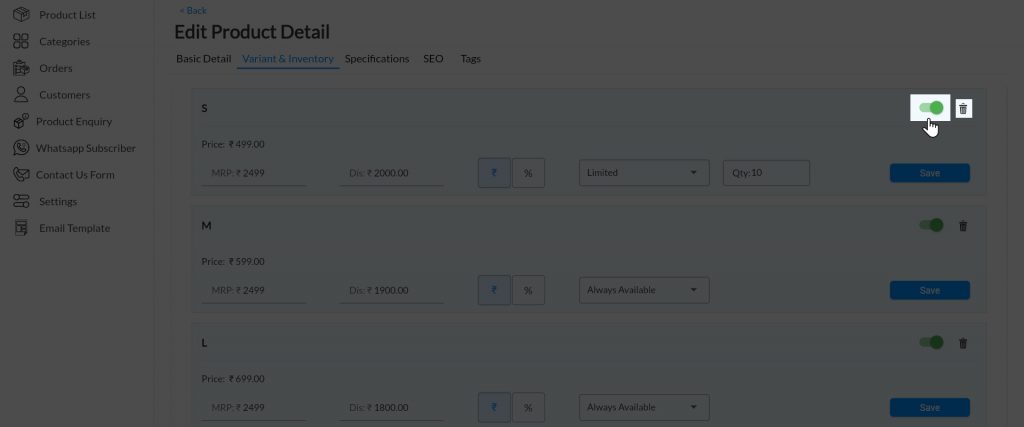
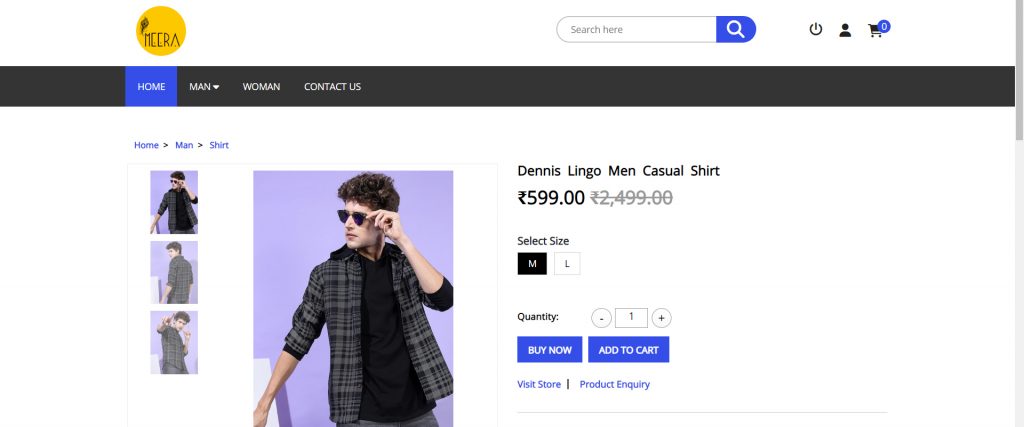
- Slide the Radio Button to make any variant Active/Inactive or click on Delete icon to delete the variant. ( Note: Ex: If you inactive or delete any variant, customer will not able to see that on website)
- View the Inactive or Delete variant on Site
- To make it Active, repeat the above steps
Android
1. Login into MCA Admin App
2. Click on , and select Products.
3. Click on More and select Manage Variant.
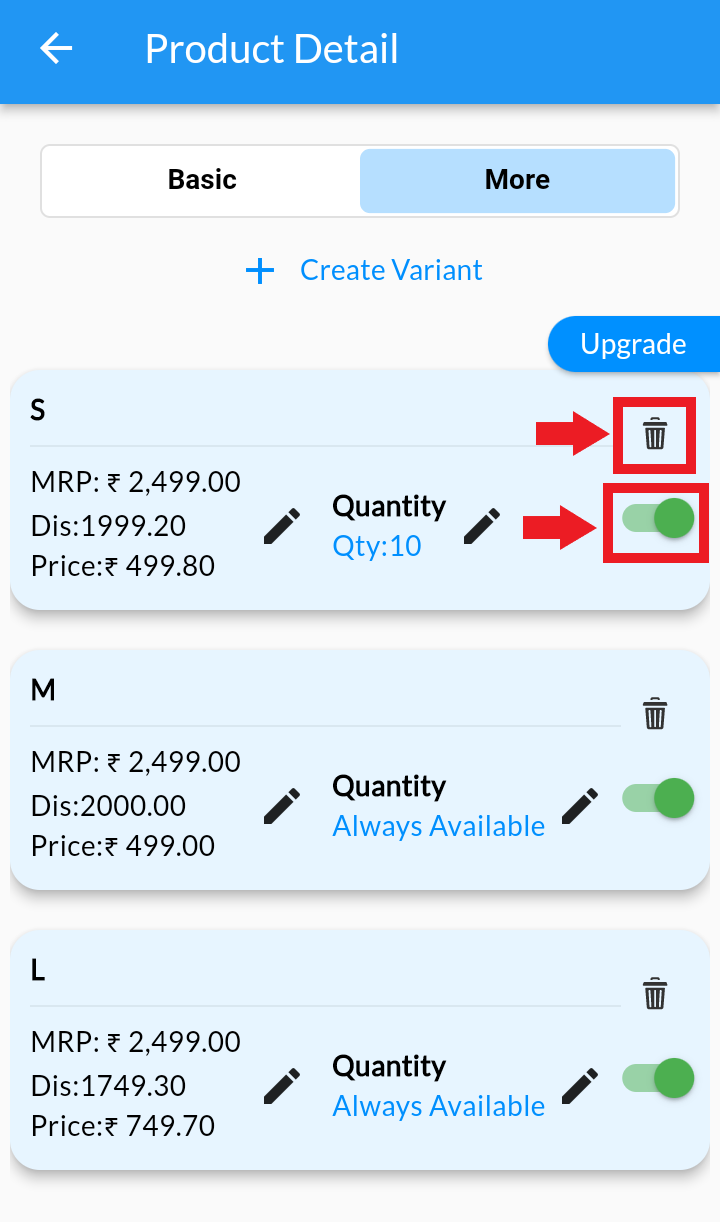
4. Slide the Radio Button to make any variant Active/Inactive or click on Delete icon to delete the variant. (Note: Ex: If you inactive or delete any variant, customer will not able to see that on website)
5. To make it Active, repeat the above steps